System-Wide Frame Rate Cap Improves Performance Without Upgrades
Capping in-game frames per second can boost GPU performance and reduce the risk of screen tearing.
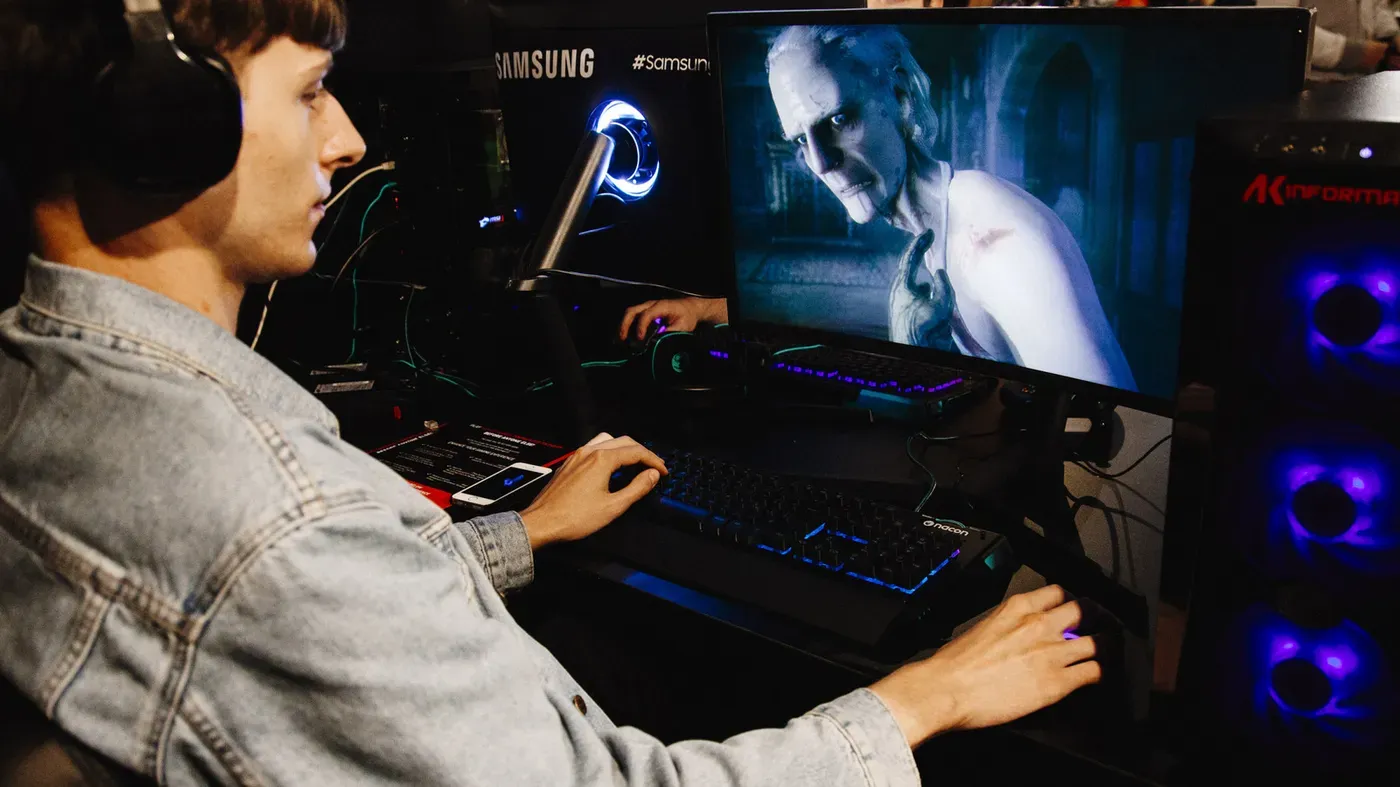
When it comes to PC gaming, frame rates are a top priority for many enthusiasts. However, there's a surprising strategy that can actually improve performance without breaking the bank: limiting your in-game frames per second.
A system-wide frame rate cap can be an effective way to boost GPU performance without having to upgrade your hardware. This approach not only helps prevent screen tearing when combined with V-Sync but also decreases GPU load, leading to a smoother gaming experience.
In most games, capping your frame rate is a good idea, especially if you want to maintain stable performance while reducing the risk of screen tearing. By setting an fps limit, you can ensure that your hardware isn't overwhelmed and that you're getting the best possible visuals without sacrificing performance.
For gamers using VRR (Variable Refresh Rate) monitors, capping frame rates makes even more sense. This is because a cap helps keep in-game action within the effective VRR range, which typically starts at 48 fps and tops out at your display's maximum refresh rate.
When paired with V-Sync, limiting fps can be particularly beneficial for VRR screens. By ensuring that in-game frames stay below the refresh rate ceiling, you can enjoy a smoother gaming experience without screen tearing or other visual artifacts.
While capping frame rates may seem counterintuitive, it's an approach worth considering, especially if you're looking to squeeze more performance out of your existing hardware. In the next part of this article, we'll explore the specific scenarios where limiting fps makes the most sense and how to implement this strategy effectively.
Screen tearing occurs when a GPU sends a new frame to a monitor while it's still displaying the previous one, resulting in different parts of the two frames appearing on-screen simultaneously.
This phenomenon is particularly noticeable during fast-paced motion and can be quite distracting, making it a significant issue for gamers seeking an immersive experience. The visual effect manifests as flickering horizontal lines that can be quite jarring.
To mitigate this problem, some gamers opt to cap their frame rates using an fps limiter. Many games have built-in graphics settings that allow for frame rate capping, although these may not always be reliable or consistent across different titles and hardware configurations.
A more stable approach is to use the software provided by the GPU manufacturer. For instance, NVIDIA users can employ either the NVIDIA app or the Control Panel to cap their frame rates. The process typically involves navigating to specific settings menus, such as Manage 3D Settings > Global Settings > Max Frame Rate, and setting a desired fps target.
Those with AMD GPUs can also cap their frame rates using the Radeon Chill feature in the Gaming section of the Adrenalin software. This allows users to set both minimum and maximum fps values to the same rate, effectively limiting the game's frame output.
Another option for gamers is to use third-party programs that specialize in frame rate capping, such as Guru3D RTSS RivaTuner.
To determine the ideal output rate for your games, you need to consider your display's maximum refresh rate. This is because using a combination of V-Sync and frame rate capping can effectively eliminate screen tearing.
In most cases, setting your frame rate slightly below your screen's maximum refresh rate will achieve this goal. For example, on a 60Hz panel, aiming for 57 fps should be sufficient to prevent screen tearing. On higher-end displays like those with 120Hz or 240Hz refresh rates, you can cap your frame rate at levels just below their respective max values.
If you're using a display that supports Variable Refresh Rate (VRR), capping your frame rate slightly below the maximum refresh rate may also help reduce lag. However, this reduction is typically not significant.
When V-Sync is enabled on your PC, it ensures that your in-game performance doesn't exceed the maximum refresh rate of your display. For instance, if you play games on a 120Hz monitor with V-Sync turned on, your frame rate will be capped at 120 fps.
V-Sync's primary function is to synchronize your game's frame rate with the refresh rate of your monitor or TV. This means that before your GPU can push a new frame, it must wait for the display's refresh cycle to complete. The delay introduced by V-Sync varies depending on the display's refresh rate, ranging from 16.7ms on 60Hz panels to 4.17ms on ultra-fast 240Hz displays.
The time taken for V-Sync to synchronize your frame rate with the display's refresh rate is directly related to the monitor or TV's refresh cycle. On a 60Hz screen, this results in a 16.7ms delay, while higher-end screens like those with 120Hz or 240Hz refresh rates have shorter delays of 8.33ms and 4.17ms respectively.
Screen tearing can be a frustrating issue for gamers, causing breaks in immersion and disrupting the overall gaming experience. V-Sync is often touted as a solution to this problem, but it comes with its own set of drawbacks.
When enabled, V-Sync forces the GPU to wait until each individual refresh rate cycle is complete before generating new frames. This added delay can result in noticeable input lag, which is particularly problematic for gamers who demand the smoothest performance possible.
The amount of latency introduced by V-Sync can vary depending on the game and hardware configuration. As a general rule, enabling V-Sync tends to add one additional refresh cycle of lag, which equates to around 8.33ms in the case of a 120Hz monitor.
For gamers who rely on high frame rates to achieve consistent performance, there are alternative solutions available. NVIDIA's V-Sync Fast feature, accessible through the NVIDIA Control Panel under Manage 3D settings, aims to reduce standard V-Sync lag while providing a lower-tear experience.
By allowing the GPU to continue rendering frames without capping FPS, V-Sync Fast can provide a viable solution for gamers who want to eliminate tearing without sacrificing performance.
Facts based on reporting originally published by Engadget.
You may republish this story, in full or in part, if you credit News Central Site and link to it (licence CC BY 4.0). Photos are not included.