GPU Upgrade Scarcity Forces Gamers to Optimize Performance
Gamers are forced to optimize their existing graphics cards due to scarcity and high prices, but there are ways to improve performance without upgrading.
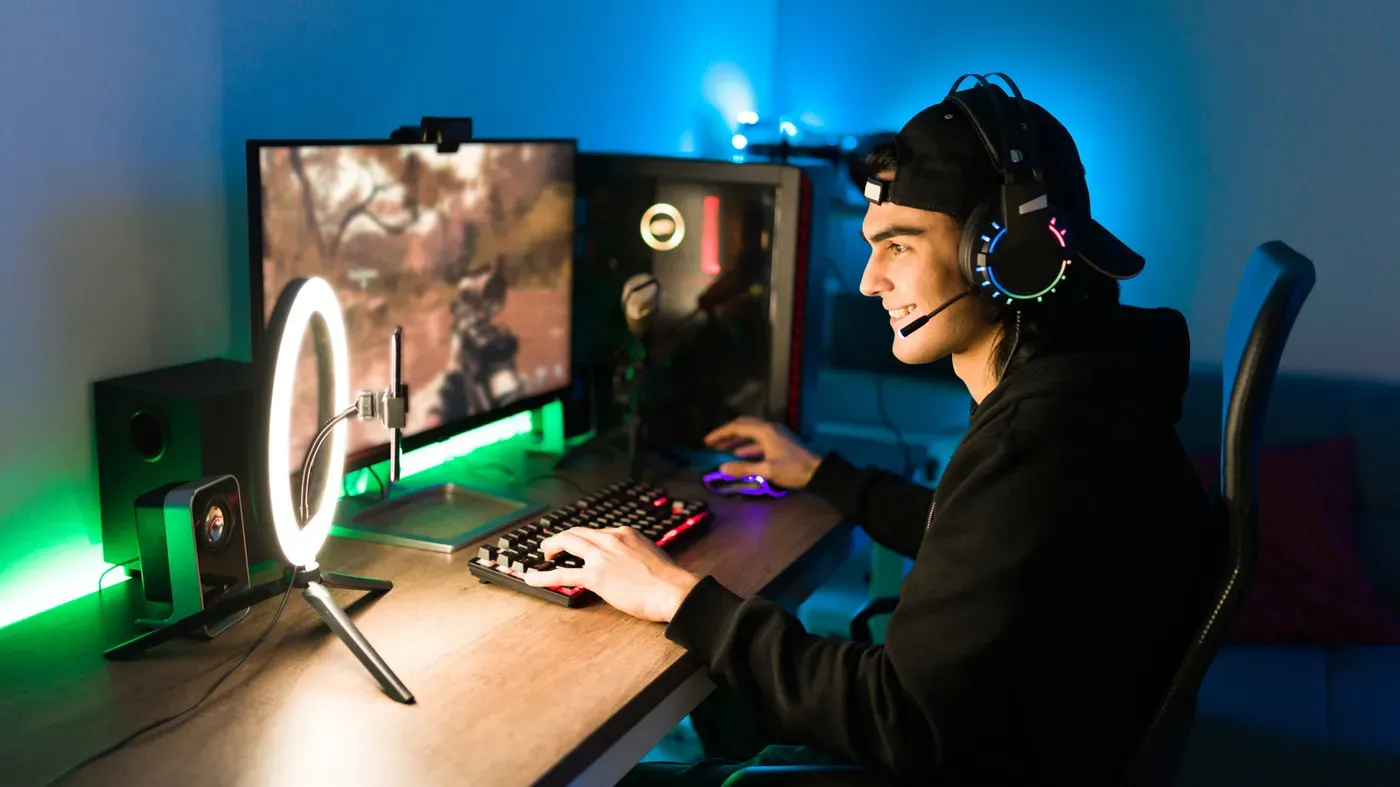
The struggle is real for PC gamers who have been unable to upgrade their graphics cards due to scarcity and high prices. Despite this challenge, there are ways to squeeze more performance out of your existing GPU without breaking the bank.
One approach is to make some tweaks to your graphics settings. This can include reducing graphics quality or resolution, but it's not just about sacrificing visual fidelity. With the right adjustments, you can still enjoy a smooth gaming experience while making the most of your current hardware.
In an era where graphical advancements are outpacing hardware evolution, getting the most out of your existing GPU is crucial. This means exploring ways to optimize performance without relying on costly upgrades or new purchases.
To boost FPS performance in your favorite games, consider implementing supersampling techniques. By rendering graphics at a higher resolution and then downscaling them, you can achieve better visuals while reducing the strain on your GPU.
Some gamers have reported significant improvements in frame rates by maintaining their GPUs through regular cleaning and dust removal. This simple step can help prevent overheating and ensure that your card runs at its optimal capacity.
The reliance on supersampling technologies has become a crucial aspect of maintaining stable performance at high resolutions, particularly in graphically demanding games.
NVIDIA's DLSS 4.5 and AMD's FSR 4 have been shown to produce image quality comparable to playing games at native resolution, while significantly boosting performance. These technologies work by rendering the game at a lower internal resolution before using deep learning techniques to upscale the final image to a higher pixel count.
The benefits of supersampling are clear: free frames with minimal downside, making it an attractive solution for gamers looking to improve their GPU performance without upgrading their hardware. The current iterations of DLSS and FSR have made significant strides in this area.
However, NVIDIA's DLSS 4.5 Multi Frame Generation tech introduces a trade-off - while capable of producing high frame rates, it adds serious input latency in supported games. This is particularly noticeable with the x6 modifier enabled.
The impact of input latency on gaming experience cannot be overstated, and gamers may need to weigh the benefits of DLSS 4.5 against its drawbacks. Meanwhile, earlier incarnations of Team Green's tech that top out at x2 and x3 modifiers perform well in supported titles, with fewer visual artifacts than MFG.
Lowering graphical settings is often the most straightforward way to boost GPU performance. This may seem obvious, but it's essential to acknowledge that not all graphics cards can handle the demands of modern games at high preset levels. If your GPU is struggling to keep up with a demanding title, reducing settings to Balanced or even Performance can help alleviate frame drops.
While some players might be concerned about sacrificing visual fidelity for performance gains, many gamers won't notice the difference in certain features like ambient occlusion and screen space reflections. By tweaking in-game sliders, you can experiment with different settings to find an optimal balance between graphics quality and frame rate.
However, it's worth noting that not all games benefit from complex rendering techniques. In fast-paced genres such as first-person shooters or racing games, the visual impact of these features is often negligible. Disabling unnecessary effects can help free up GPU resources for more critical tasks, potentially leading to a smoother gaming experience.
An increasing number of PC titles offer intuitive graphics menus that allow players to preview the effect of different settings on the game world. These menus can be particularly helpful in determining which features are truly noticeable and worth keeping enabled. If you're unsure about the impact of a particular setting, it's always a good idea to consult these preview panes before making any adjustments.
By taking a closer look at your game's graphics options and tweaking settings accordingly, you may find that a few simple changes can make a significant difference in your GPU performance. This can be especially true for games that don't require the most advanced visual effects to deliver an enjoyable experience.
Cleaning and maintaining your PC's interior is crucial for optimal performance, especially when it comes to graphics-intensive tasks like gaming. A cluttered system can lead to a decrease in frame rates due to thermal throttling, which occurs when dust accumulates on the fans and prevents proper airflow.
Dust buildup around the GPU's fans can cause the card to reach its temperature limit more quickly, resulting in reduced core clock speeds and decreased performance. This is particularly problematic for GPUs that are already struggling with intense tasks, as it can exacerbate existing performance issues.
To prevent thermal throttling, regular maintenance is essential. This includes cleaning the interior of your PC, paying close attention to the fans and heat sinks surrounding your GPU and CPU. A buildup of dust can lead to decreased airflow, causing temperatures to rise and impacting overall system performance.
When cleaning your GPU, it's essential to take precautions to avoid damaging any components. First, switch off your PC and unplug it from the power source. Then, use a can of compressed air to gently disperse debris from the fans, taking care not to spray the can too closely or at an angle that could damage the card.
A soft microfiber cloth is also necessary for cleaning the GPU's surface, as it will help prevent scratches and other damage. Use short spurts of air to remove any remaining dust particles, then wipe the card gently with the cloth to keep it clean and free from debris.
Cleaning your PC regularly can have a significant impact on its performance, especially when combined with other methods for boosting GPU power. By keeping your system tidy and well-maintained, you can help ensure that your graphics card is running at optimal levels, even without upgrading to a new one.
Keeping a graphics card in good working order requires attention to its software as much as its hardware. Outdated drivers can hinder performance, so it's essential to ensure your GPU driver is updated regularly for optimal results.
To further optimize your system, consider closing unnecessary background applications that consume resources and distract from gaming performance. For those seeking more advanced tweaks, overclocking the GPU can be an option, but this requires caution and a deep understanding of the process, which can be safely managed using tools like MSI Afterburner with thorough research.
Facts based on reporting originally published by Engadget.
You may republish this story, in full or in part, if you credit News Central Site and link to it (licence CC BY 4.0). Photos are not included.