Sony PS5 Game Access Issues Highlight Problem of Digital Licensing
The padlock symbol over a PS5 game library can indicate issues with access due to authentication problems or license withdrawal by Sony.
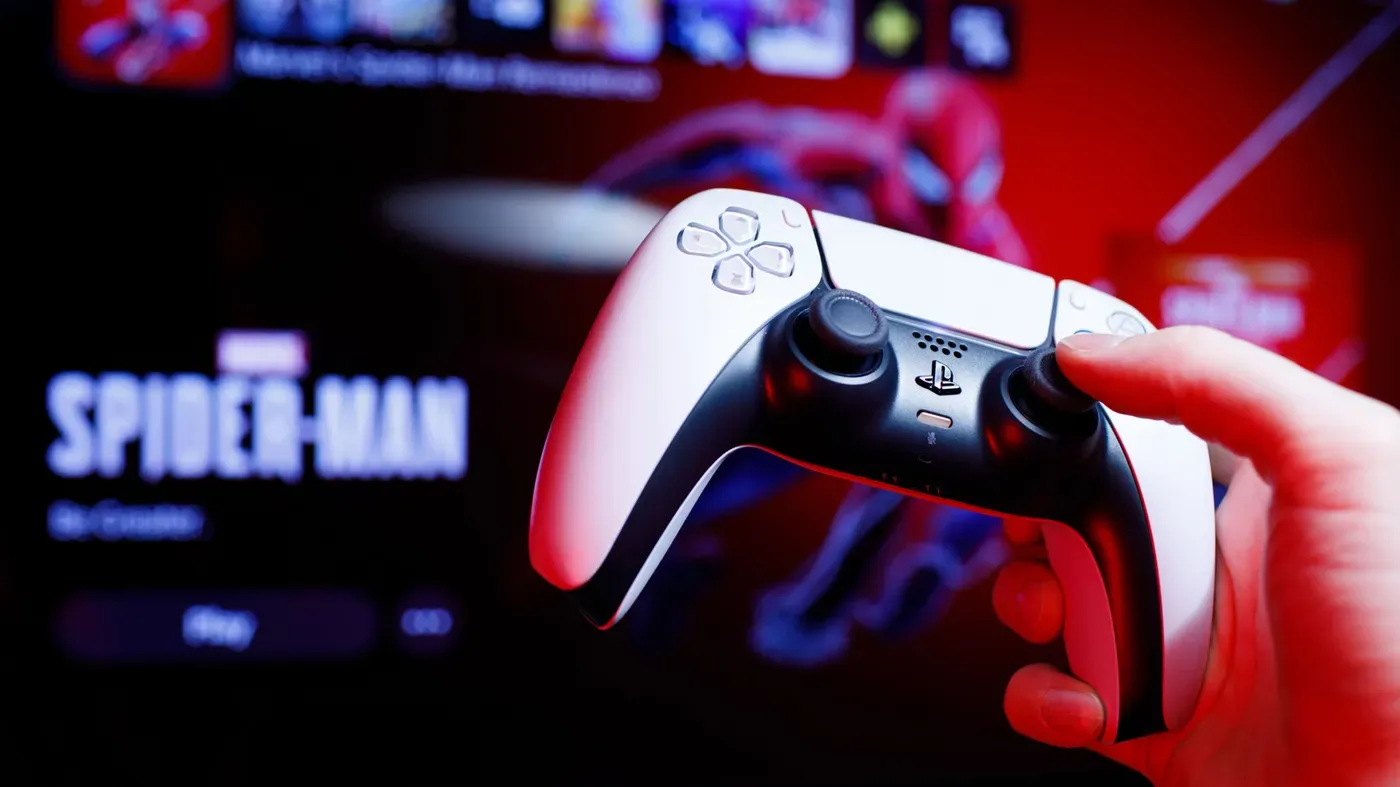
The sight of a padlock icon over your PS5 game library is not an encouraging one, especially if you're unable to access a game that you've paid for and installed.
In some cases, this can be due to issues with the authentication process, which is controlled by Sony itself. When you buy a game from an online store, you don't actually gain permanent ownership rights - instead, you're granted a license to download and play the title.
The padlock symbol indicates that there's been a problem with your access to the game, possibly due to issues with the authentication process or a withdrawal of the license by Sony. This can be frustrating for gamers who have paid for their games in full.
As part of its plans to phase out disc-based games from 2028 onwards, Sony is placing greater emphasis on ensuring that digital titles work smoothly, but this has also highlighted existing issues with game access and licensing.
To troubleshoot the padlock symbol in your PlayStation 5 game library, start by checking that you're signed into the correct account. This is crucial because it's what connects all your purchases and subscriptions together.
You can sign out of an account by navigating to Settings > Users and Accounts > Other > Sign Out, or sign back in via Settings > Users and Accounts > Account > Sign In. Additionally, this menu allows you to create new accounts if needed. Make sure you're using the right credentials to access your game library.
Next, verify that PlayStation Network is online by checking the PlayStation Status page. If PSN is down, it's possible that you may be locked out of games. This can be a frustrating experience, especially when you're eager to play a title.
To ensure that your purchases are recognized, go to Settings > Users and Accounts > Account > Payment and Subscriptions > Transaction History. This will display all your past transactions, helping you identify any issues with game access.
Furthermore, if you have an active PlayStation Plus subscription, check that the game you want to play is included in your library by browsing the current offerings on the PlayStation Plus website or through Settings > Users and Accounts > Account > Payment and Subscriptions > Subscriptions.
When you're playing on someone else's console, you can access their games under your own account in a feature known as "gamesharing". This requires the owner to have Console Sharing and Offline Play enabled in Settings > Users and Accounts > Other.
However, there is a limitation - this option can only be activated on one PS5 per account. If the owner has multiple consoles, they will need to re-designate which one you're currently using.
To troubleshoot issues with accessing games, try forcing PSN to restore licenses for individual titles by going to the game in your library and pressing the Options button on your controller. Then select Restore License from the options menu.
Before proceeding, it's a good idea to restart your console (go to Settings > System > Power Save > Restart PS5) and ensure you're running the latest system software updates at Settings > System > System Software Update and Settings.
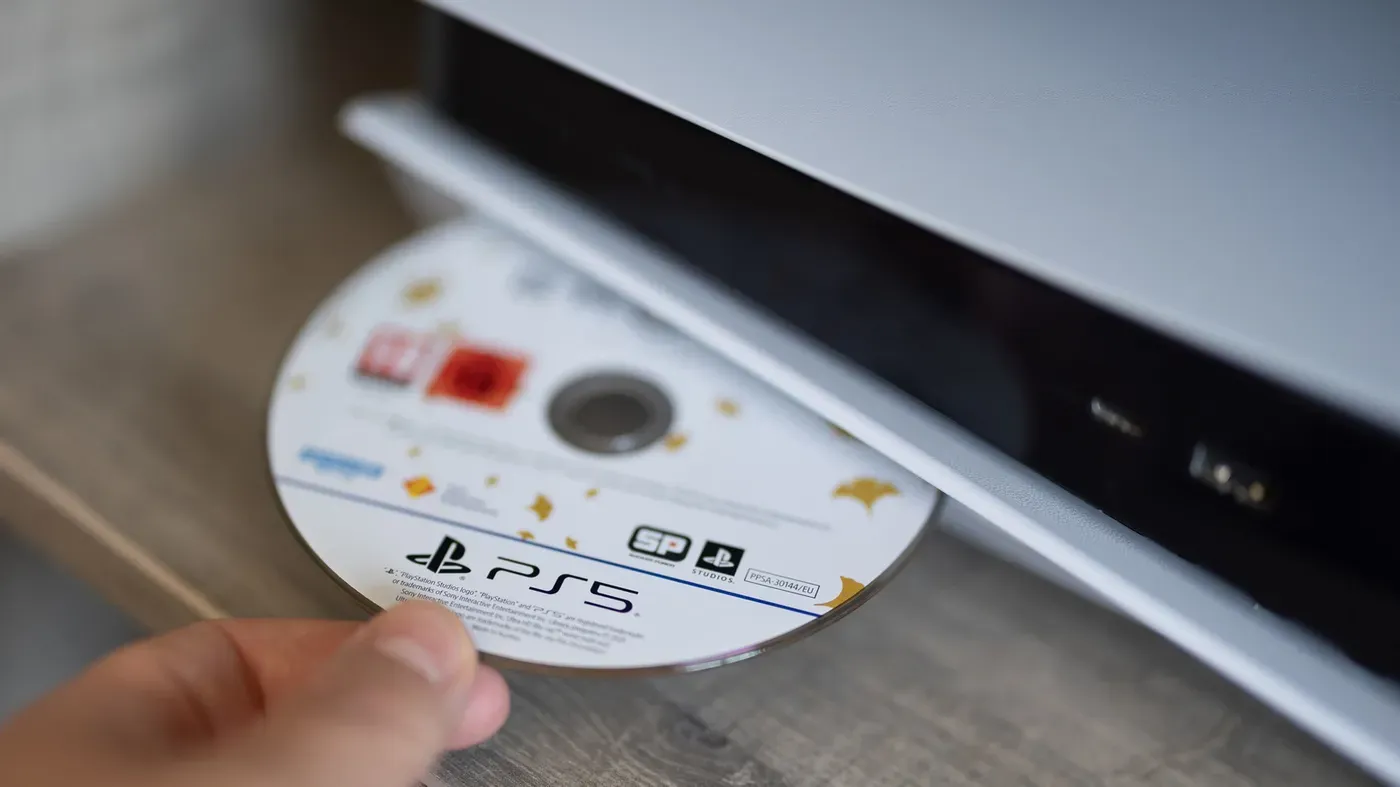
If you notice a padlock symbol on a disc-based game in your PS5 library, it indicates that the disc is not being used as an authenticator for the game. To troubleshoot this issue, make sure you're using the correct disc and that it's properly inserted into the console.
Ensure the disc is clean and facing the right direction - with the label up if the console is horizontal or to the left if it's vertical. If none of these steps resolve the problem, there could be a glitch in your PS5's database. In such an extreme case, you can try booting your console into Safe Mode by following specific steps.
Facts based on reporting originally published by Engadget.
You may republish this story, in full or in part, if you credit News Central Site and link to it (licence CC BY 4.0). Photos are not included.