Windows Has Two GPUs: How to Identify Them
The Task Manager is one of the quickest ways to find out which GPU your system uses for certain tasks, but Windows offers other built-in options as well.
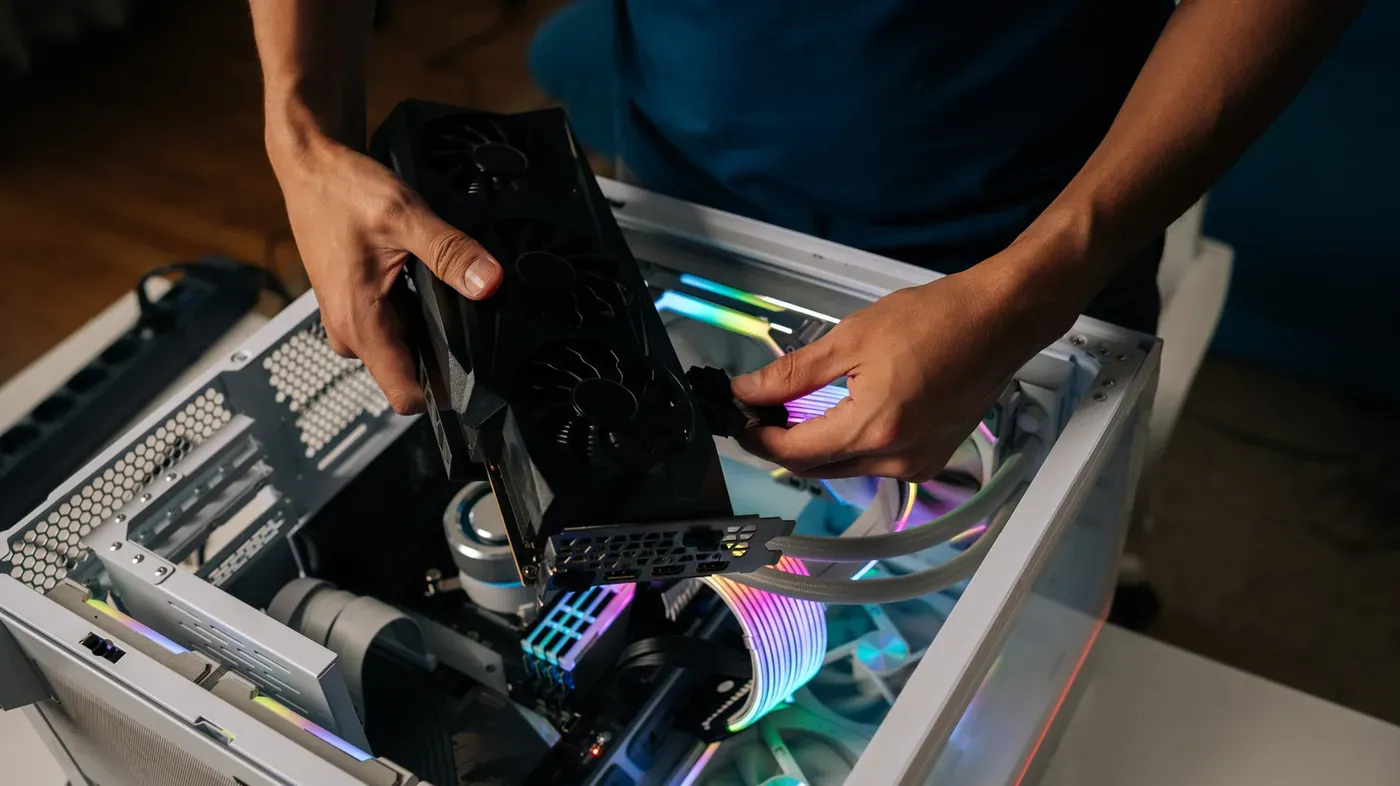
When upgrading or troubleshooting your Windows PC, knowing the type of graphics processing unit (GPU) installed is crucial for making informed decisions.
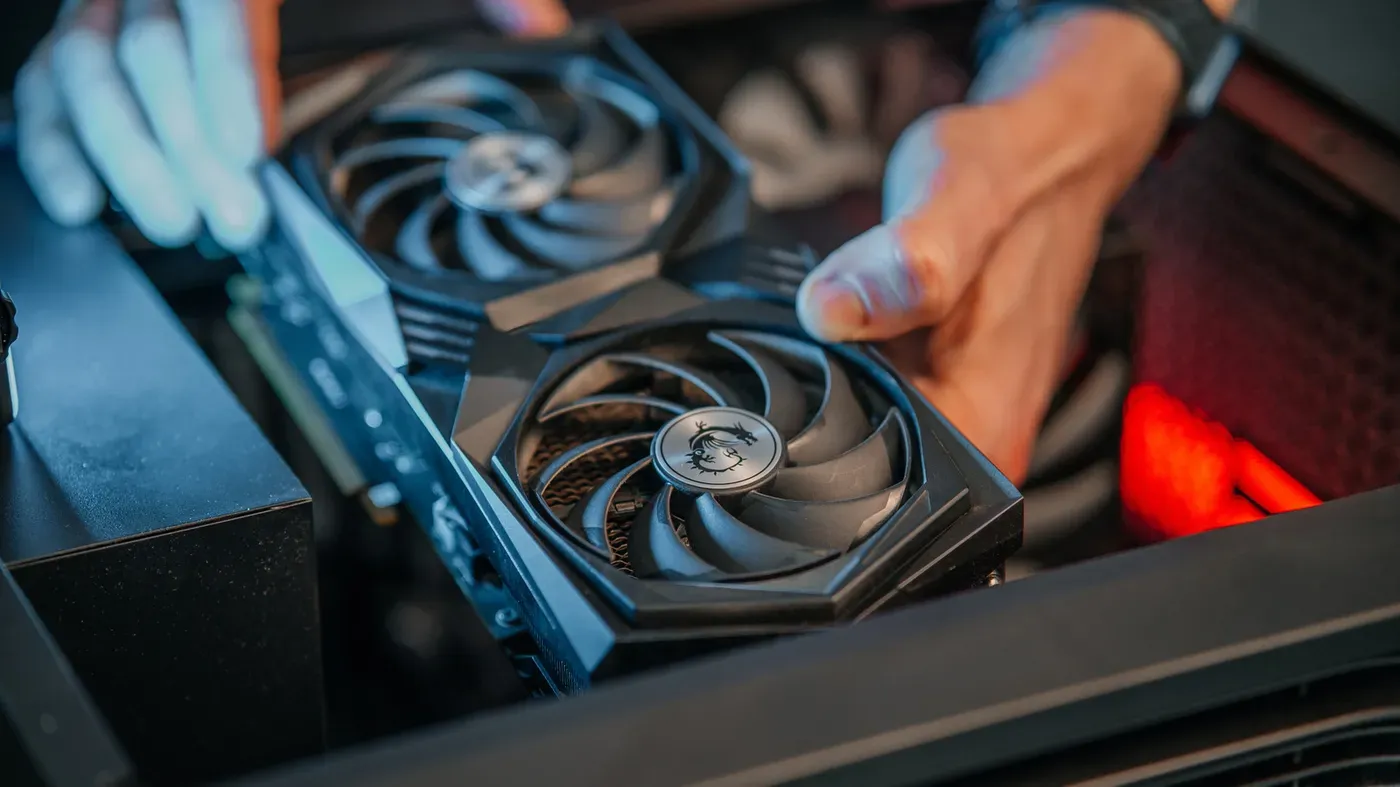
Many users don't realize that their computer can have two GPUs: one integrated into the CPU and another dedicated GPU, often from NVIDIA, AMD, or Intel, which handles demanding tasks like gaming. The system's performance and capabilities may not be entirely clear just by looking at an Intel or AMD sticker on the device.
To identify the GPU in your Windows PC, you don't need to open it up or install any external software. Instead, there are built-in tools that can provide this information quickly and easily. However, these tools may only reveal details if they're not hidden in fine print.
The Task Manager is one of the quickest ways to find out which GPU your system uses for certain tasks. But besides this tool, Windows offers other built-in options as well, which are useful when you need more detailed information about your graphics hardware.
The Performance section of Windows' Task Manager offers a clear view into your computer's graphics card, including details about its memory, driver, and current workload.
Windows labels GPUs based on their hardware location, not their performance, which means the numbering doesn't necessarily reflect the more powerful or primary graphics card.
Below the performance graphs in Task Manager, you'll find dedicated and shared GPU memory. Dedicated memory refers to the VRAM available on a dedicated GPU, while shared memory is system RAM borrowed by the GPU when needed.
Some integrated GPUs reserve a portion of system RAM for graphics, which Windows reports as dedicated memory, but an integrated GPU relies heavily on system RAM rather than having its own dedicated memory.
Task Manager also provides additional details about your GPU, including branding, driver information, DirectX version, and even temperature readings if the hardware supports it.
To view your GPU's name without any graphs involved, head to Device Manager by right-clicking the Start button and selecting it from the list.
To get more detailed information about your system's graphics card, you can open the DirectX Diagnostic Tool from the Run dialog box.
Pressing Windows + R will bring up the Run dialog box, where you can type dxdiag and press Enter to launch the tool. This will give you access to a range of tabs that provide details about your system's hardware and software configuration.
The Display tab within the DirectX Diagnostic Tool provides information on the graphics card installed in your system, as well as its drivers, while the System tab shows the version of DirectX installed on your system.
Facts based on reporting originally published by Engadget.
You may republish this story, in full or in part, if you credit News Central Site and link to it (licence CC BY 4.0). Photos are not included.