Raspberry Pi Connect Simplifies Remote Access
The Raspberry Pi team has developed a program called Raspberry Pi Connect that allows users to communicate with their Pi unit over the internet without needing port forwarding.
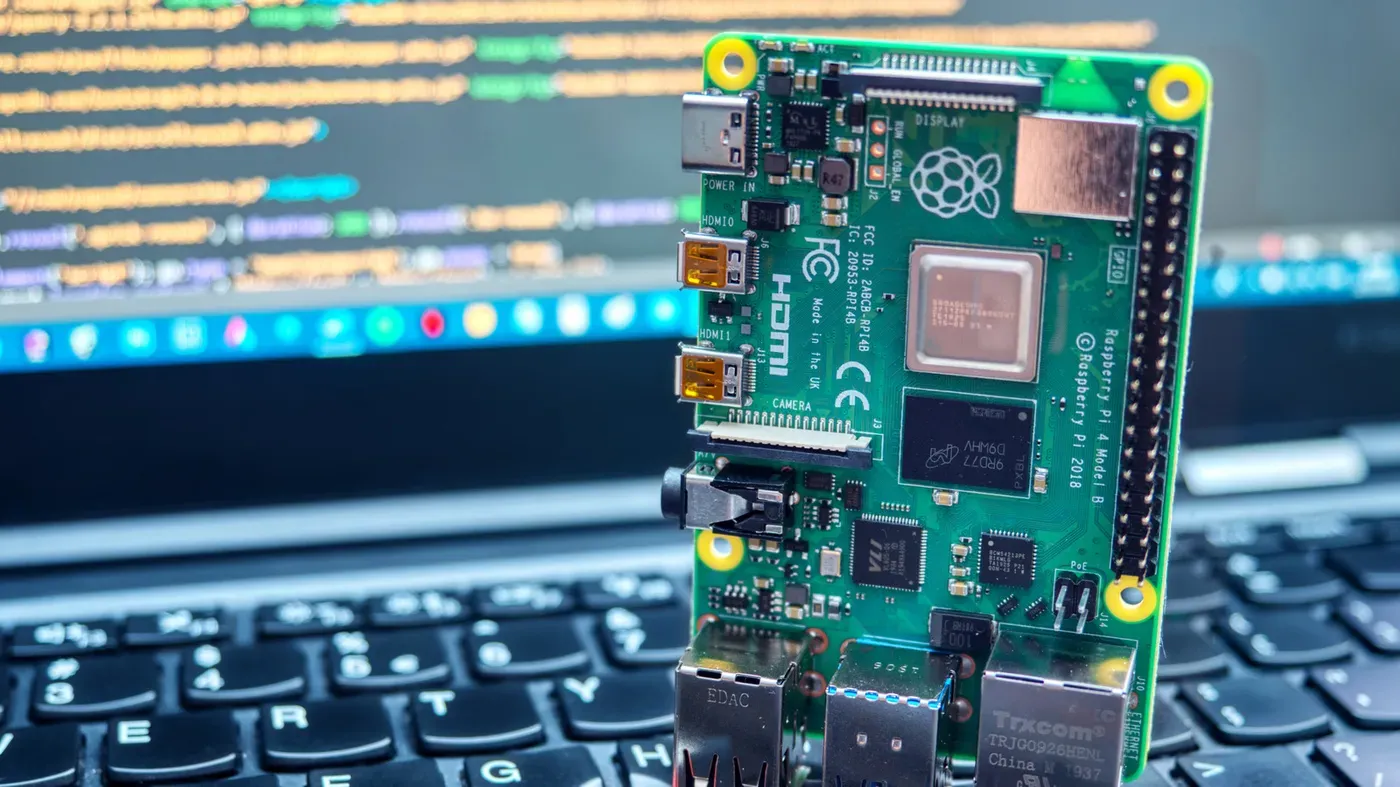
Remote access to a Raspberry Pi can be a game-changer for home projects that require frequent checking or updates while away from the device. However, setting up a VNC service or SSH tunneling often involves port forwarding, which can be a hassle for beginners and a potential security risk.
Raspberry Pi Connect is a program developed by the Raspberry Pi team that allows users to communicate with their Pi unit over the internet without the need for port forwarding. This tool works seamlessly even when you're outside your network, making it an ideal solution for remote access.
The best part about Raspberry Pi Connect is its ease of use and compatibility. If your device is running Bookworm or a later version, Connect will work automatically with no additional setup required. However, older devices have limited options, but as long as you're running Pi OS or its Lite variant, setting up Connect is a straightforward process.
Raspberry Pi Connect relies on WebRTC technology to establish a secure peer-to-peer connection between two web browsers. This eliminates the need for third-party software on your Pi unit and allows it to bypass strict firewalls and restricted NATs.
Connecting to a Raspberry Pi remotely just got easier thanks to the free tool called Connect. This versatile tool offers two essential features: screen sharing and remote shell. With remote shell, you can open an SSH terminal directly in your browser, making it simple to run commands or monitor your device from anywhere.
Screen sharing is another convenient feature that lets you turn your browser into a virtual desktop for your Pi unit. However, keep in mind that this function requires an active desktop session and will use the Pi's resources since it runs through a Wayland session. If you're using an older model, make sure to update your Pi OS before attempting to use the screen sharing feature.
To get started with Connect, you'll need two basic things: the tool installed on your Raspberry Pi unit and a stable internet connection. The tool comes in two packages: full and lite. While the full package supports screen-sharing compatibility for devices connected to a display, the lite version is geared towards remote access only.
Once you've installed either package using an SSH session, simply type "rpi-connect on to enable internet access.
To access your Raspberry Pi remotely using Connect, navigate to connect.raspberrypi.com and sign in to your Pi account if you already have one. Alternatively, create a new account from the menu if you're just setting up.
Once logged into your Pi account, link your device by following the specific instructions available on the Raspberry Pi website under the Get Started section. After linking, simply sign back into your account and select the Connect via" option to choose how you'd like to connect to your device, making any necessary changes as needed to keep your setup up-to-date.
Facts based on reporting originally published by Engadget.
You may republish this story, in full or in part, if you credit News Central Site and link to it (licence CC BY 4.0). Photos are not included.