iPhone Clock App Has Hidden Limit for Alarm Settings
The iPhone's Clock app has been found to have a hidden limit for alarm settings, where users cannot scroll past 4:39 AM or 16:39 PM.
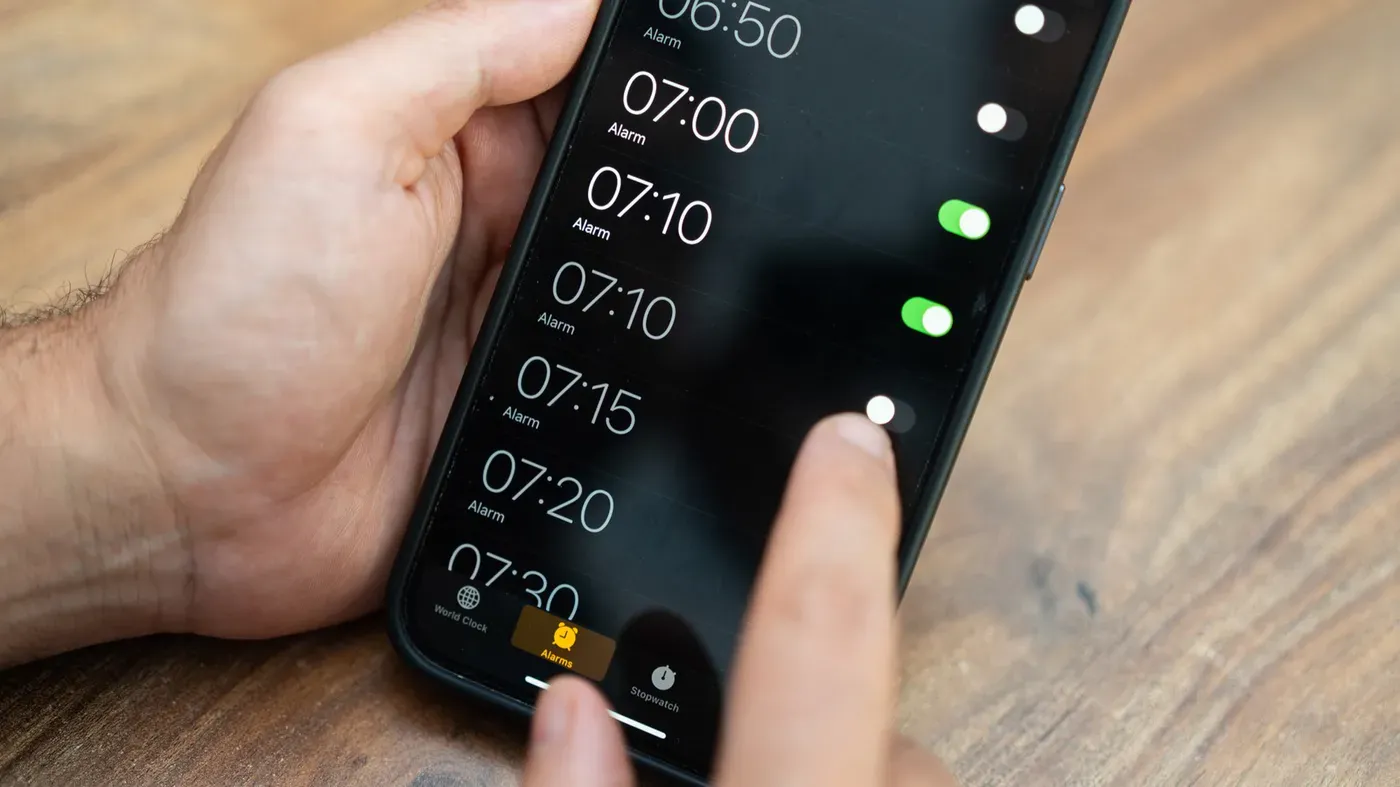
The iPhone's Clock app has been a staple feature on Apple devices for nearly two decades, and most users interact with it without issue. However, beneath its straightforward interface lies an intriguing peculiarity that recently gained attention.
When setting alarms in the Clock app, it may initially appear as though you can scroll through hours and minutes indefinitely. But, upon closer inspection, there is a hidden limit to how far your alarm settings will go. Specifically, attempting to set an alarm at times beyond 4:39 AM or 16:39 PM will result in hitting a dead end.
This anomaly has been observed by users who have taken the time to rapidly scroll through the hour and minute options. It is worth noting that this limit is reached quickly when scrolling as fast as possible, which may explain why most people are not aware of it. The Clock app's design allows for rapid scrolling, making it easy to overlook this peculiarity.
Upon reaching the endpoint, users can still set alarms at earlier times or choose alternative alarm settings. This unusual behavior within the iPhone's Clock app has sparked curiosity and raised questions about its implications for user experience and functionality.
The iPhone's Clock app has been observed to have an unusual behavior when it comes to displaying time in alarm settings. Specifically, the alarm stops at 4:39, which may seem like a random and arbitrary number.
One possible explanation is that this anomaly is related to Tableview, although Apple has not officially commented on the matter. Online discussions suggest various theories behind this quirk, but no concrete evidence has been provided to support any of them.
A closer look at the Clock app reveals another interesting feature - its icon is not static and displays the current time, including a moving second hand. This functionality was introduced in iOS 7, allowing users to easily glance at the time without having to open the app.
In addition to this visual update, devices running iOS 26.1 or later exhibit a subtle change when Low Power Mode is enabled - the second hand's motion changes from a continuous sweeping motion to a once-per-second tick, similar to a traditional quartz clock.
The iPhone Clock app offers more features than just telling time. Users can also access the Stopwatch feature by swiping across the display within the app. This allows for a quick switch between digital and analog stopwatch faces without needing to download an additional app.
A simple yet useful feature is the ability to change the clock's appearance. Both older and newer iPhone models offer several clock-display options, although they are not as varied as those found in other apps that specialize in time-telling.
To enable a larger bedside alarm clock display, users can place their iPhone on its side while it's connected to a charger. This puts the device into StandBy mode, which displays various widgets, photos, or simply a classic clock face. Users can then swipe left or right to change the types of clocks shown.
In low-light environments, such as a typical bedroom at night, users can activate Night Mode within StandBy mode. This adjusts the screen's display to a heavy red tint, reducing its intrusiveness and making it easier on the eyes when placed close to one's face.
To fully utilize your iPhone as a bedside clock, a specific feature needs to be enabled in Settings - Always-On Display. This setting allows the screen to remain active even when the phone is locked, making it easier to check the time without having to physically interact with the device.
The display can also be optimized for nighttime use by placing the phone near your face, which triggers an automatic adjustment that reduces the screen's brightness and shifts its color tone to a reddish hue. This makes the display less intrusive and more comfortable on the eyes.
Facts based on reporting originally published by Engadget.
You may republish this story, in full or in part, if you credit News Central Site and link to it (licence CC BY 4.0). Photos are not included.