Google Introduces Feature Allowing Users to Edit Gemini AI Assistant's Memories
This new feature gives users control over how their data is used by Google's AI-powered services, allowing them to correct any inaccuracies that may impact their interests.

Google has introduced a feature that allows users to view and edit what its Gemini AI assistant remembers about them. This is a significant step in giving users control over their digital footprint and how it's used by AI-powered services.
The ability to edit the AI's memory is crucial as it directly impacts the responses provided by Gemini. For instance, if you share personal preferences or health information with Gemini, such as being lactose intolerant, the AI will tailor its suggestions accordingly. This means users have a say in how their data is used and can correct any inaccuracies that may be detrimental to their interests.
Gemini's memory is built from various sources, including Google apps like Gmail, YouTube, Search, and other services linked to your account. The AI also draws from conversations with you, incorporating your preferences and personal facts into its understanding of who you are.
The settings menu now offers a way to access and modify Gemini's memory directly. This feature is essential for users curious about what the AI knows about them or those wanting to correct any inaccuracies that may be influencing Gemini's responses.
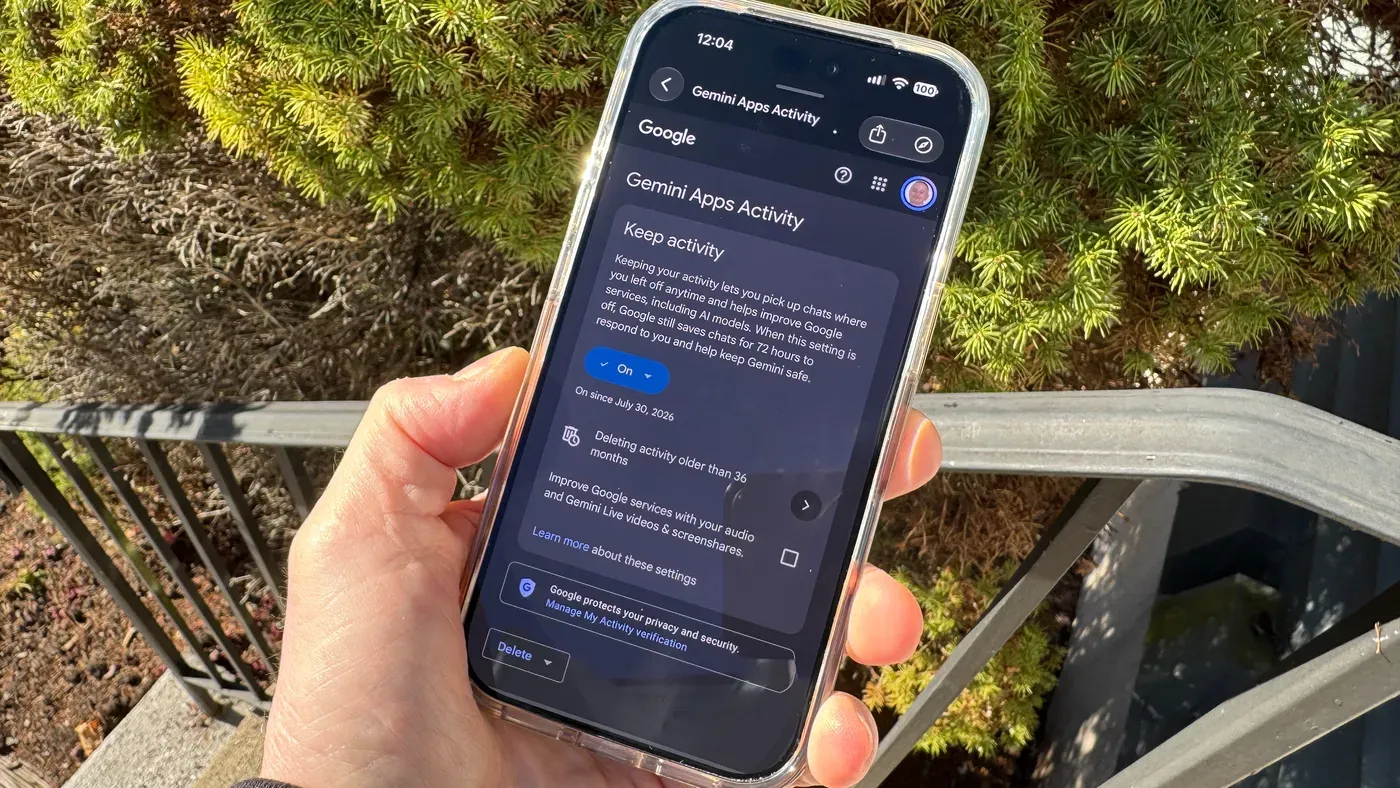
There are two layers of settings related to Gemini's memory, although only one has been explicitly named as such by Google. The first setting, known as Keep Activity, determines whether chats with Gemini are saved and linked to your Google Account.
When Keep Activity is enabled, past conversations can be retrieved whenever you sign in with your account, allowing for seamless continuity across devices. If the toggle is disabled, chats will disappear after 72 hours unless you re-enable it or manually save individual conversations.
Google's Gemini AI uses past chats to build a profile of users, referencing this information to personalize its responses. This process relies on the Keep Activity feature being enabled, as it allows Gemini to access and remember user inputs.
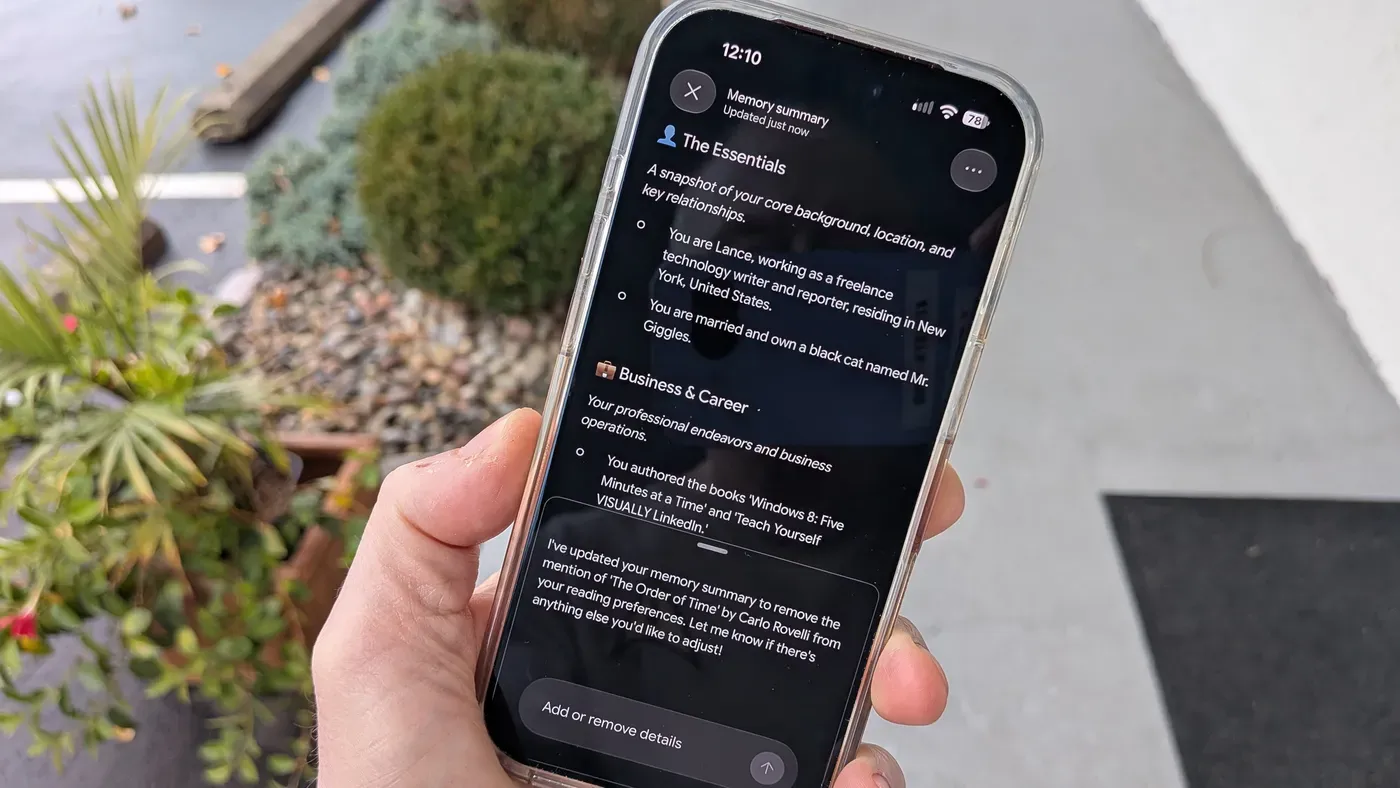
In the US, paid Google AI plan subscribers with memory enabled can view and edit Gemini's compiled summary of their interactions. To do so, navigate to the Settings menu in the Gemini web app, click Personal Intelligence, and then select Memory Summary.
The resulting list categorizes major details gleaned from past conversations, including personal data, career information, and interests. Interestingly, Gemini often knows users' pets' names as well.
Users can choose to review this summary or take a more active role by editing the information to their liking. To do so, click the Edit button in the top-right corner of the Memory Summary window, which allows for line-by-line revisions or deletions.
In edit mode, any changes made to the memory summary are tracked and saved as part of Gemini's history. Users can also prompt Gemini to make additions or subtractions by entering a request via the text box at the bottom of the window.
Once satisfied with their changes, users can click Save to commit them to Gemini's memory. This feature provides a level of transparency into how Gemini is using user information and allows for adjustments to be made as needed.
The ability to review and edit Gemini's memory summary may appeal to those concerned about data privacy or who wish to ensure the AI has an accurate understanding of their preferences.
You have the option to turn off Gemini's memory system entirely by clicking on the Memory toggle in the Personal Intelligence menu. This will prevent new facts from being committed to memory, but it won't delete any existing information.
To edit or delete specific details stored in Gemini's memory, you can use the Memory summary feature. Alternatively, you can head to the Activity menu within the Gemini web app and select Settings to access a list of interactions you've had with the AI.
From this menu, you can scroll through conversations by date and click on the "X" next to each one to delete it completely. This action removes those chats from the context pool that Gemini uses to personalize its responses.
By disabling or editing Gemini's memory, users can exert greater control over what information is retained and how the AI responds to their inputs, ultimately leading to more useful interactions.
Facts based on reporting originally published by Engadget.
You may republish this story, in full or in part, if you credit News Central Site and link to it (licence CC BY 4.0). Photos are not included.