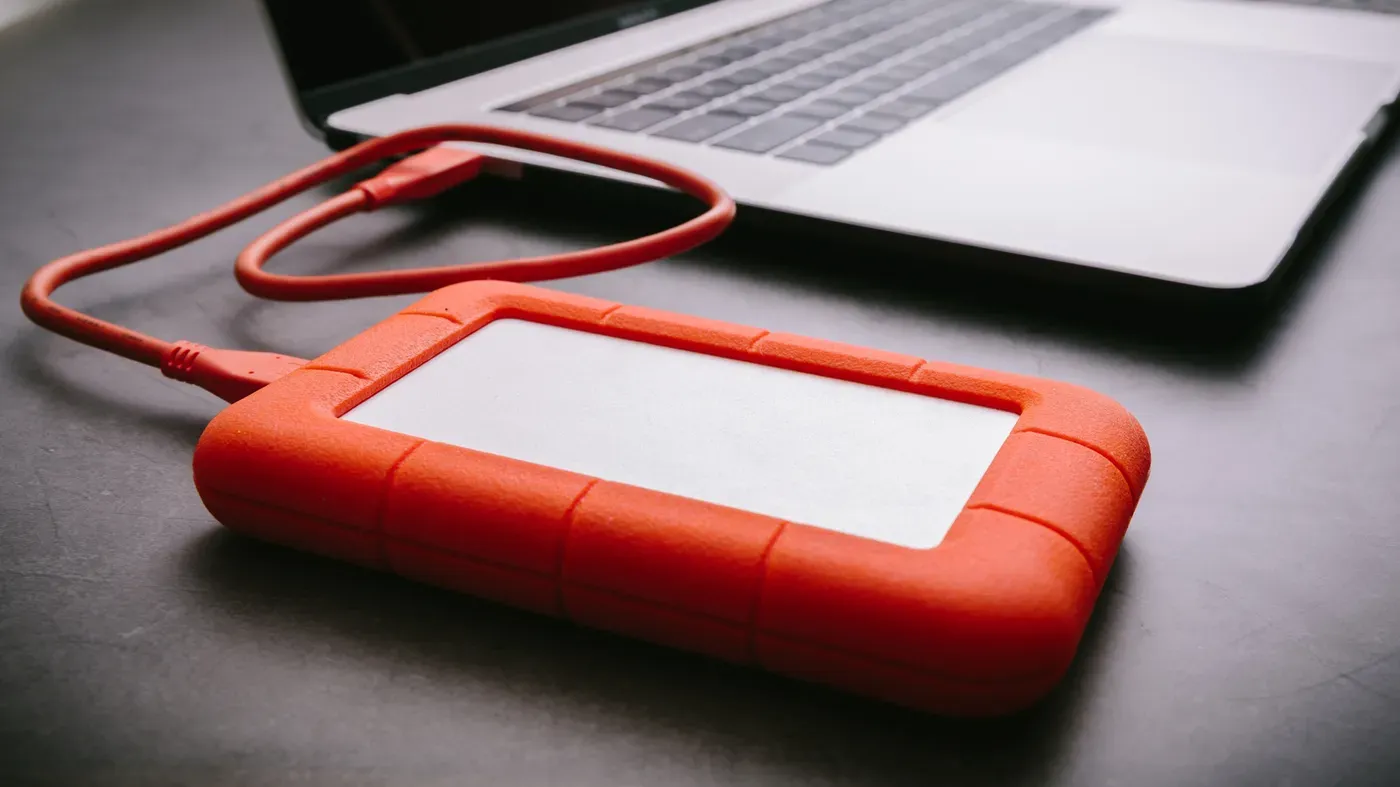
External hard drives can sometimes fail to function as intended
Users should remain calm and troubleshoot the issue before resorting to more drastic measures, starting with testing different hardware combinations.
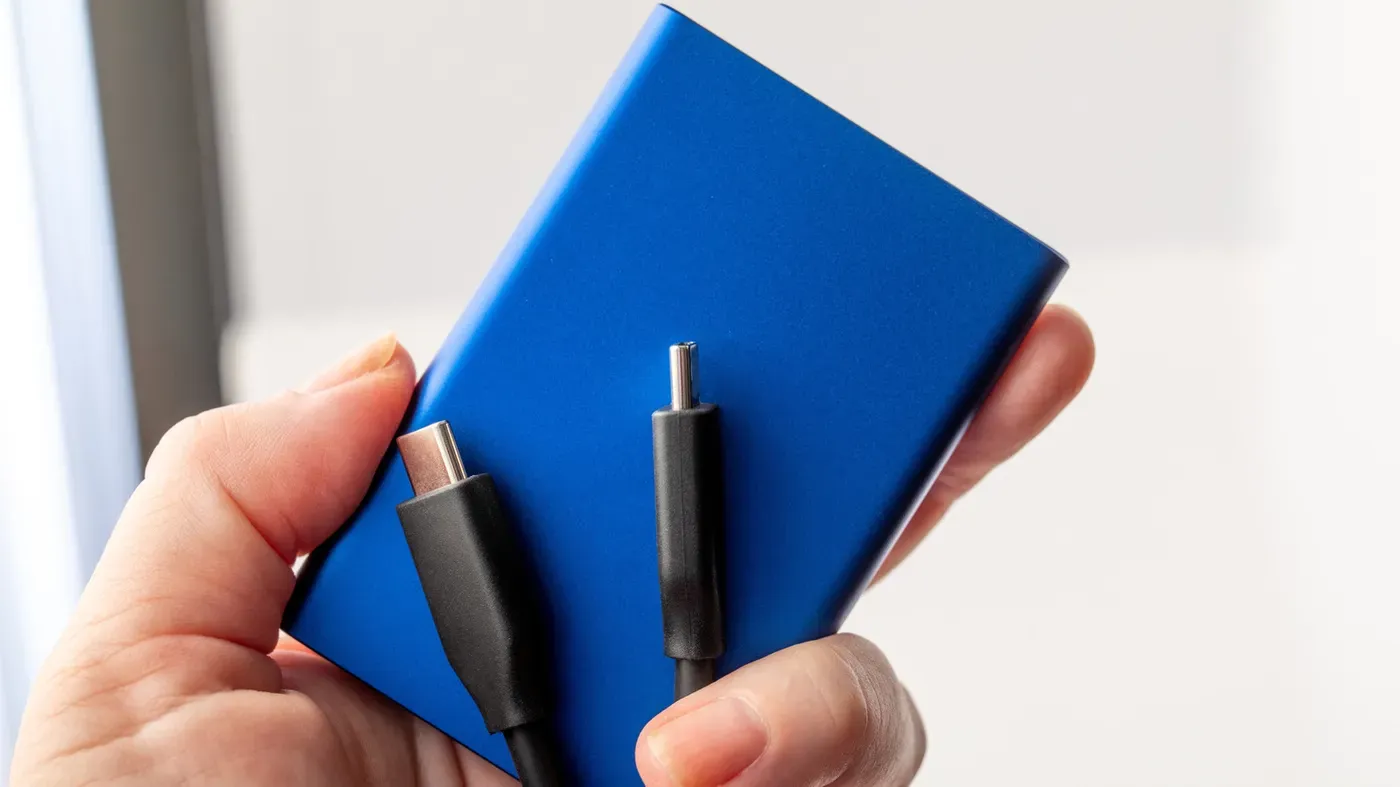
External hard drives are a crucial component in today's digital landscape, allowing users to easily transfer files between machines and provide an additional layer of data security.
The 3-2-1 rule is often cited as a best practice for safeguarding valuable data, which involves maintaining three copies on two different types of media with one copy stored safely away from the workplace or at home.
However, even with proper precautions in place, external hard drives can sometimes fail to function as intended. In such cases, users should remain calm and attempt to troubleshoot the issue before resorting to more drastic measures.
A good starting point for troubleshooting is to test different hardware combinations, including swapping out cables and trying a different USB port or interface. This simple step can often resolve connectivity issues.
Users who are comfortable with software troubleshooting may also want to try using built-in tools like Disk Utility to diagnose and repair any issues with the external drive.
If your PC is unable to read an external hard drive, it's essential to eliminate any potential hardware issues before troubleshooting further. Plug the drive into a different USB or Thunderbolt port on your computer and use a matching cable to rule out any connectivity problems.
Thunderbolt cables are not just for data transfer; they also handle charging and video transmission. It's crucial to use the correct cable and port combination to ensure seamless communication between devices. Additionally, remember that external drives require an external power supply, which some USB ports on your computer may not be able to provide.
If you're using a drive with a separate AC adapter, plug it in before attempting to access its contents. This might seem obvious, but it's easy to overlook this step and end up frustrated when the issue persists. If possible, try plugging the drive into another computer to see if the problem is specific to your machine.
Some external drives may be detected by Windows or macOS but fail to load due to formatting issues. In such cases, you can attempt to recover the drive using built-in tools. For example, in Windows 11, open Device Manager and expand the Disk drives section to locate the drive in question.
If your drive is listed but doesn't have a drive letter assigned, you may be able to assign one by right-clicking on it and selecting Properties > Volumes > Populate. However, if the drive lacks NTFS formatting, reformatting it might be necessary, albeit as a last resort, as this will erase any existing data.
Using Windows' CHKDSK utility is often a more prudent approach than reformatting. Open the Terminal app and enter chkdsk [drive letter] /r to attempt to repair errors and recover bad sectors on the drive. This might resolve the issue without losing valuable data.
If your Mac won't read an external hard drive, you may need to use a software solution. The Disk Utility app is often the go-to tool for resolving issues like this on macOS devices. To access it, open the app and select View > Show All Devices from the menu.
If your drive appears in the list, click on the indented entry to highlight it, then select Mount at the top of the app window. This should allow you to access the contents of the drive without any issues. Alternatively, if this doesn't work, you can try running First Aid instead.
Updating hardware drivers is another potential solution for resolving compatibility issues. On macOS devices, Apple typically bundles these updates with the latest OS releases. To check for available updates, navigate to the Apple menu > System Settings > General > Software Update.
In some cases, Windows users may need to delve into Device Manager to update their drivers. Once you've accessed the Properties menu for a drive in Device Manager, click on the Driver tab and try updating or uninstalling the current driver.
If all else fails, it may be time to seek external assistance for recovering valuable data from an unrecognizable external hard drive. A reboot might still work its magic, but if not, professional help from a reputable recovery firm is the next best option.
In desperation, users can also try using their computer's built-in OS recovery tools, although these are unlikely to resolve issues that haven't already been addressed through troubleshooting steps.
Facts based on reporting originally published by Engadget.
You may republish this story, in full or in part, if you credit News Central Site and link to it (licence CC BY 4.0). Photos are not included.