Apple Updates HomePod Speakers with Sound Glow Feature
The feature adds a colorful light show to the top of the speaker that synchronizes with music playing on it.
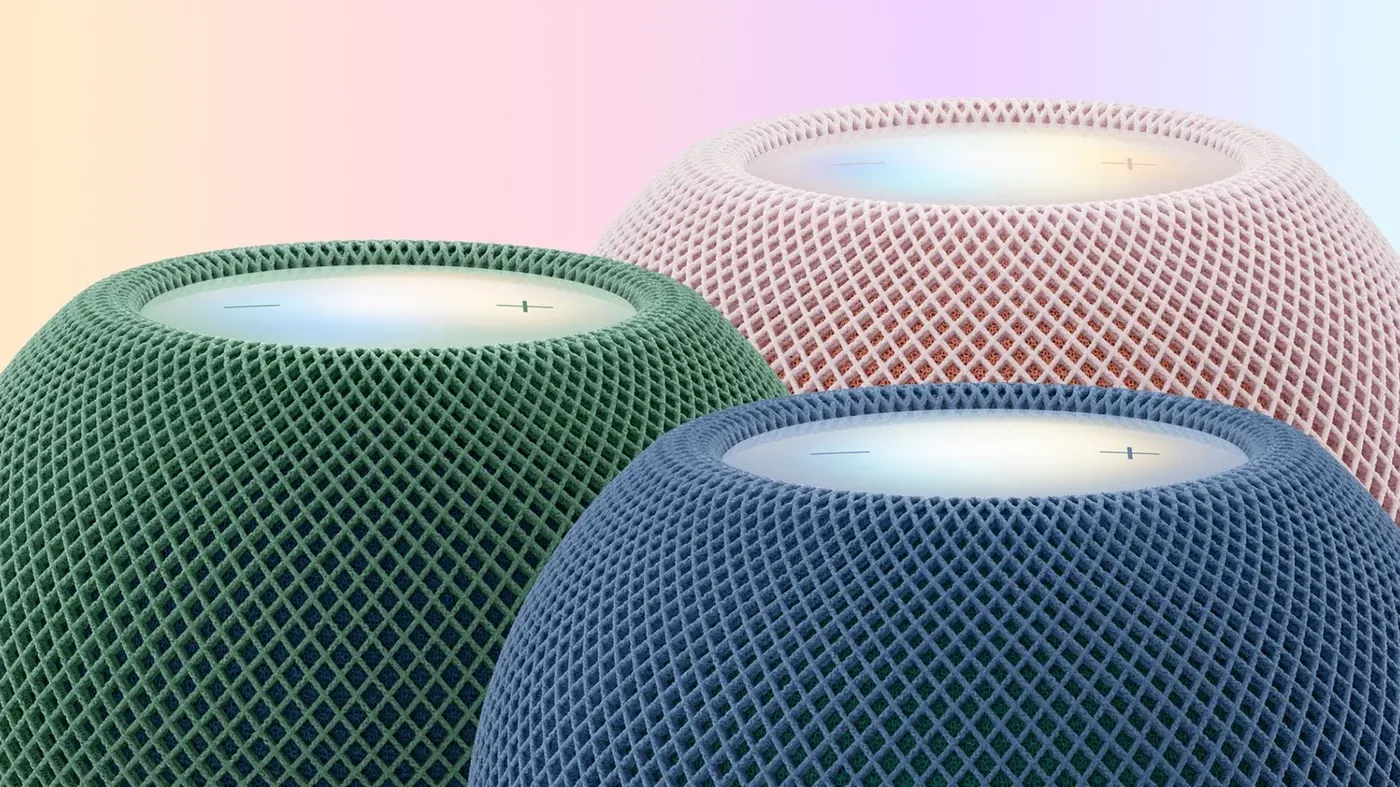
Apple has released an update for its HomePod speakers that adds a new feature called Sound Glow to its lineup of smart speakers.
The top of the speaker now comes alive with a colorful light show synchronized to the music playing on it, creating a visually engaging experience for users.
This feature was introduced alongside the launch of the HomePod mini 2 and is available on all current models, including the original HomePod mini and the larger HomePod 2.
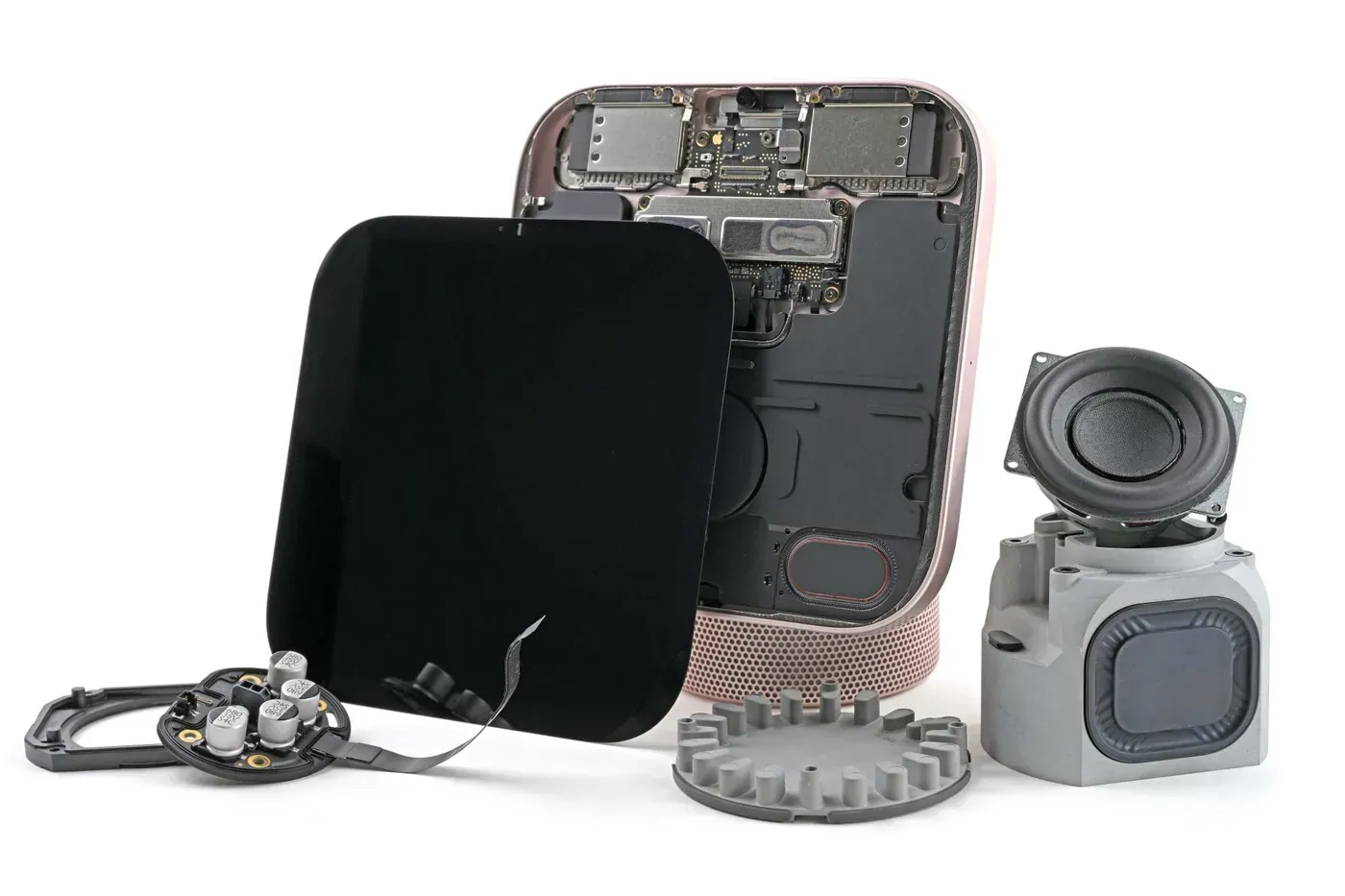
The update makes better use of the existing lights on top of the speaker, which were previously only used to indicate when Siri was listening or a song was playing.
HomePods have a basic set of lights that don't offer much beyond indicating activity, but with Sound Glow, users can enjoy a more immersive experience while listening to music.
The new feature uses an array of LEDs on top of the speaker to create a colorful display that mirrors the rhythm and beat of the music.
Users who want to try out Sound Glow will need to check their HomePod settings to see if it's available for their device.
The latest software update for HomePods has brought a new feature called Sound Glow, which utilizes the speaker's LEDs to create a more engaging listening experience.
When playing music, HomePods now incorporate colors from album art into a pulsing light display that synchronizes with the song's beat, making each track visually distinct.
For example, Taylor Swift's The Life of a Showgirl will be accompanied by predominantly green and orange lights, while Miley Cyrus's Endless Summer Vacation will result in blue hues on your HomePod.
This dynamic light animation is said to react in real time to the bass and treble levels of each song, ensuring that even two tracks from the same album will have unique visual effects.
To activate Sound Glow on your HomePods, ensure that all devices connected to it are running the latest software. This includes not just the HomePods themselves but also any Apple device paired with them. Users can verify this by checking for updates in the Home app from another compatible device.
A HomePod running the latest software will automatically update after a period of time, but users can speed up the process by manually confirming an update is available. This involves tapping on the three-dot button within the Home app and selecting Home Settings.
To use Sound Glow with your HomePods, you'll need an Apple Intelligence-enabled device paired with them. This includes iPhones from the 15 Pro model onwards, iPads running the latest operating system, or Mac devices equipped with the M1 chip or newer.
For those who prefer to watch their music, an Apple TV running tvOS 27 can also enable Sound Glow on HomePods.
To activate Sound Glow on your HomePod, ensure that your device is updated to its latest version. This will allow you to access the feature and enjoy a synchronized light display with music.
Go back to the Home app's main screen and tap on your HomePod icon, then navigate to Settings by scrolling down and locating the Sound Glow toggle. Simply flip it on, repeating this process for each individual HomePod if necessary. If you decide that Sound Glow isn't to your liking, turning it off requires a similar sequence of actions, but with the toggle flipped in the opposite direction.
Facts based on reporting originally published by Engadget.
You may republish this story, in full or in part, if you credit News Central Site and link to it (licence CC BY 4.0). Photos are not included.