Apple CarPlay Warns Drivers of Speed Cameras
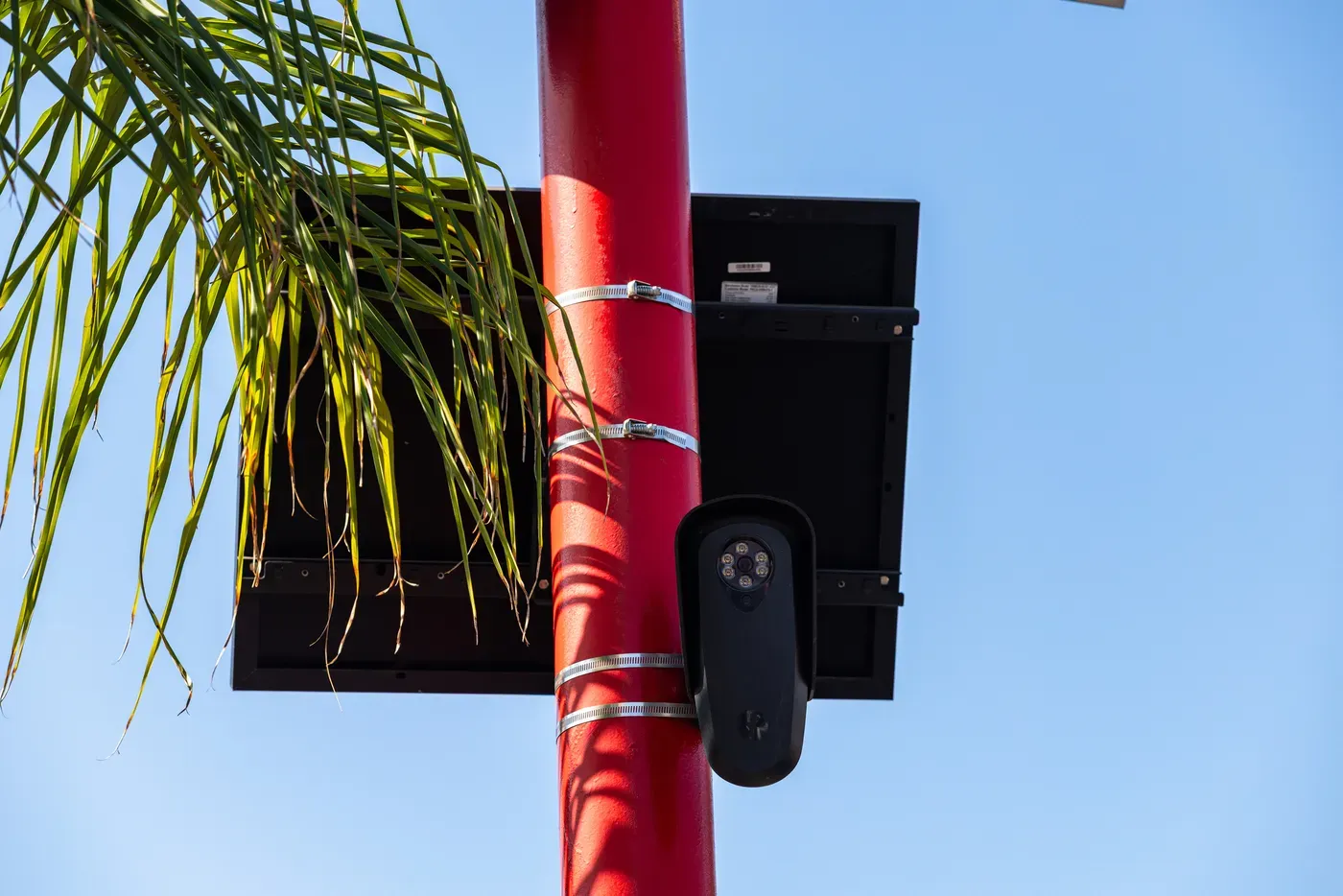
A new feature in Apple CarPlay allows users to receive warnings about speed cameras while driving through their chosen navigation apps.
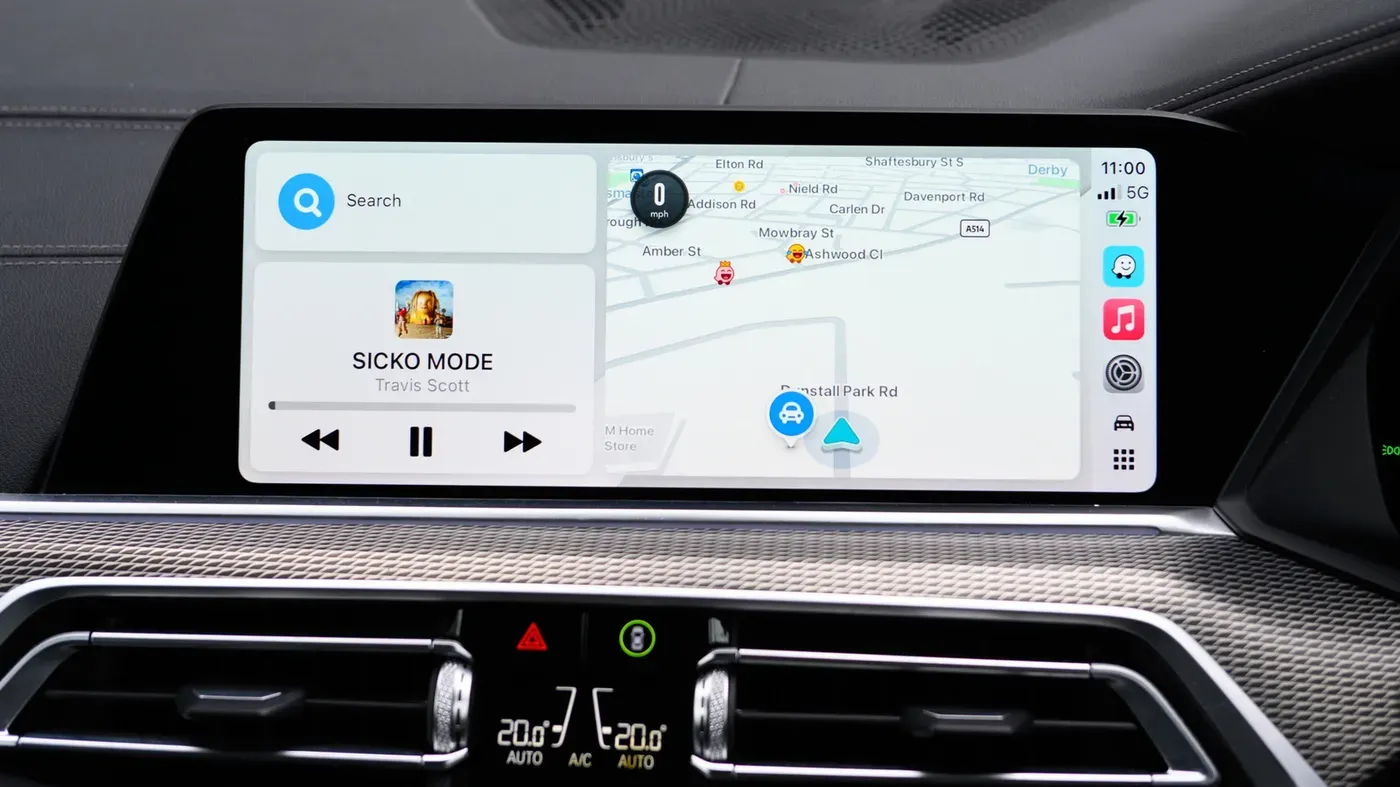
A new feature in Apple CarPlay allows users to receive warnings about speed cameras while driving, but these alerts come from their chosen navigation apps, not directly from CarPlay itself.
Navigation apps such as Waze and Google Maps can provide real-time information on the location of speed cameras, giving drivers a heads up before they reach them. However, it's essential to note that mobile speed traps are often in motion and may not be accounted for by these apps unless someone reports their new position through the app.
The concept of mobile speed detectors dates back to 1899 when a NYC taxicab driver named Jacob German was caught speeding at 12mph in an 8mph zone. At the time, police officers on bicycles were used as mobile units to patrol roads and enforce speed limits.
While modern technology has improved significantly since then, there is no single navigation app that can provide real-time information on every camera location. This is because speed cameras often move around or are not reported in a timely manner by drivers.
Despite these limitations, navigation apps continue to play an essential role in helping drivers avoid speeding fines and stay safe on the road.
When using Apple Maps on CarPlay, users don't have a switch to toggle on or off camera alerts in supported regions. Instead, these alerts are automatically activated when navigating through areas where speed cameras are present. This means drivers can stay informed without having to manually adjust settings.
Waze, one of the compatible navigation apps for CarPlay, offers more control over camera alerts. By default, Waze turns on camera warnings, but users can fine-tune them in the app's Settings menu. To make these changes, navigate to Alerts and Reports > Reports > Cameras and toggle on or off specific types of cameras.
For those who want to customize their settings further, Google Maps on CarPlay offers similar options. Users can tap "Report" to report mobile speed camera locations, which will be visible to other drivers using the app. To receive alerts from other drivers, open Settings > Alert options and select All alerts.
Some third-party navigation apps also provide warning alerts for speed cameras, even when not actively navigating. Radarbot is one such app that sends alerts for fixed and red light cameras through CarPlay, but only with a Gold membership. Other apps like Roadar offer additional features, including Flock camera detection and license plate reader notifications.
Radarbot isn't the only option for drivers concerned about speed cameras. For those specifically interested in Flock cameras, there's also FlockHopper, a free app that works with CarPlay to provide alerts and warnings when navigating through areas where these cameras are present.
To access warnings about speed cameras in Apple CarPlay, you'll need to navigate through your chosen navigation app's settings.
For those using Apple Maps, the Speed Limit toggle can be found in Settings > Apps > Maps > Driving. Once enabled, the posted limit will appear on screen while navigating. This feature is a useful addition for drivers who want to stay informed about speed limits without having to constantly check signs or road markings.
If you're using Waze instead of Apple Maps, make sure you disconnect from CarPlay and open the Waze app to access its settings. Within Settings > Speedometer > Show Speedometer > Set Preferences > Show Speed Limit, you can enable the display of speed limits. This feature is also available in Google Maps, where it's located in a similar section of the app.
Google Maps and Waze both offer additional features that provide warnings when drivers exceed speed limits or approach areas with sharply changing limits. These apps are integrated into CarPlay, but not all users may be aware of these capabilities, particularly those who have upgraded to CarPlay Ultra.
Facts based on reporting originally published by Engadget.
You may republish this story, in full or in part, if you credit News Central Site and link to it (licence CC BY 4.0). Photos are not included.