Android Phones Repurposed as Computer Speakers with Minimal Effort
The AudioRelay app enables wireless audio streaming over Wi-Fi from PC to Android phone.
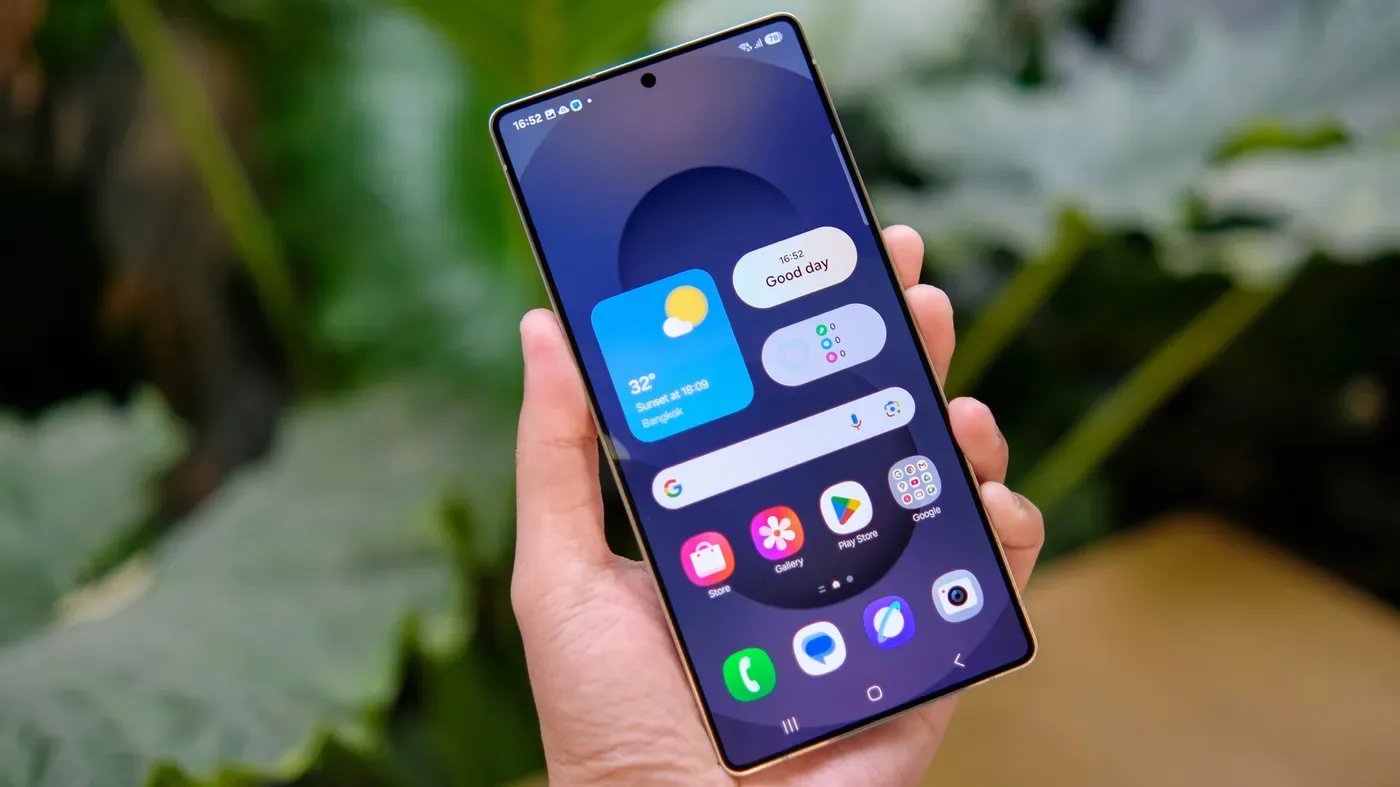
A recent discovery has revealed that Android phones can be repurposed as computer speakers with minimal effort.
The versatility of Android devices is once again on display, as users can now utilize their smartphones to amplify sound from their computers. The process involves installing a specific app on both the PC and phone, which enables wireless audio streaming over Wi-Fi.
This temporary fix comes in handy when computer speakers malfunction or become damaged, allowing owners to breathe new life into their old Android phones instead of discarding them.
To achieve this functionality, the AudioRelay app is being used as an example. This software seamlessly streams audio from the PC to the Android phone, supporting Windows, Mac, and Linux operating systems.
The reason Bluetooth pairing doesn't work lies in the way most Android devices are configured to act as a source rather than a receiver for Bluetooth connections.
To get started with AudioRelay, users must first install the app on their computer and phone.
To ensure a seamless connection, both devices must be linked via the same Wi-Fi network. This is a crucial step in establishing a stable communication channel between the phone and computer. On your Android device, locate the Server section within the AudioRelay app and tap on your computer's name.
The process should now be mirrored on your PC as well, where you'll see your Android device listed under Connections. Once this sync is established, you can play any audio on your PC and it will automatically stream through your Android phone's speakers. This feature allows for a convenient and wireless solution to expand your listening experience.
However, users running macOS may need to take an additional step. In the Server section of AudioRelay, select BlackHole (or your virtual audio device) as the server. Then, navigate to Audio MIDI Setup and set the selected device as sound output. This adjustment ensures that audio streams correctly through your Android phone.
For Linux users who encounter issues with default audio devices, a workaround is available. In the Server section of AudioRelay, locate the device starting with "Monitor of" and select it as the server. This should resolve any problems related to audio playback on your Android phone.
Users experiencing audio lag or latency can try an alternative connection method using USB tethering. To do so, connect your phone to your computer via a USB cable, then navigate to the AudioRelay app and toggle on USB tethering in Settings.
Connecting your Android phone to your computer as a speaker can be a convenient setup, but audio delay and choppiness are common issues that can spoil the experience. These problems often arise from inadequate buffering of audio data.
A smaller buffer size may reduce latency, but it also leads to more choppy sound. Conversely, a larger buffer size smoothes out the audio at the expense of increased delay. A straightforward solution is to switch to a wired connection.
If going wireless is unavoidable, you can minimize delay by adjusting the buffer settings in the AudioRelay app. To do this, open the app and navigate to Player settings. From there, select Low buffer for minimal latency or Medium buffer for a balance between smoothness and promptness.
The reason buffering is necessary lies in the way audio data is transmitted over networks. Unlike steady streams of information, network data transmission can be erratic due to hiccups or congestion. The buffer acts as a temporary holding area, ensuring that your phone's speaker receives a consistent flow of audio.
Switching to a 5GHz connection can also improve audio streaming performance. If your router supports this band, connect both devices to it for better results. Additionally, disabling Bluetooth can help, as it operates on the same frequency band as Wi-Fi and may interfere with each other.
The free version of AudioRelay comes with ads, but users can upgrade to a Premium subscription for around $1 per month. This paid option removes advertisements and allows for unlimited connection time, making it suitable for frequent use. Additionally, the Premium plan unlocks features like custom buffer settings, which enable more precise control over audio playback.
With the Premium version, users also gain access to higher-quality uncompressed audio and can stream audio to multiple devices simultaneously. These advanced features make AudioRelay a viable option for those seeking an Android phone as a computer speaker.
Facts based on reporting originally published by Engadget.
You may republish this story, in full or in part, if you credit News Central Site and link to it (licence CC BY 4.0). Photos are not included.