Google Maps allows users to set home addresses for navigation convenience
Users can edit or remove home addresses in the Google Maps settings on both web and mobile versions.
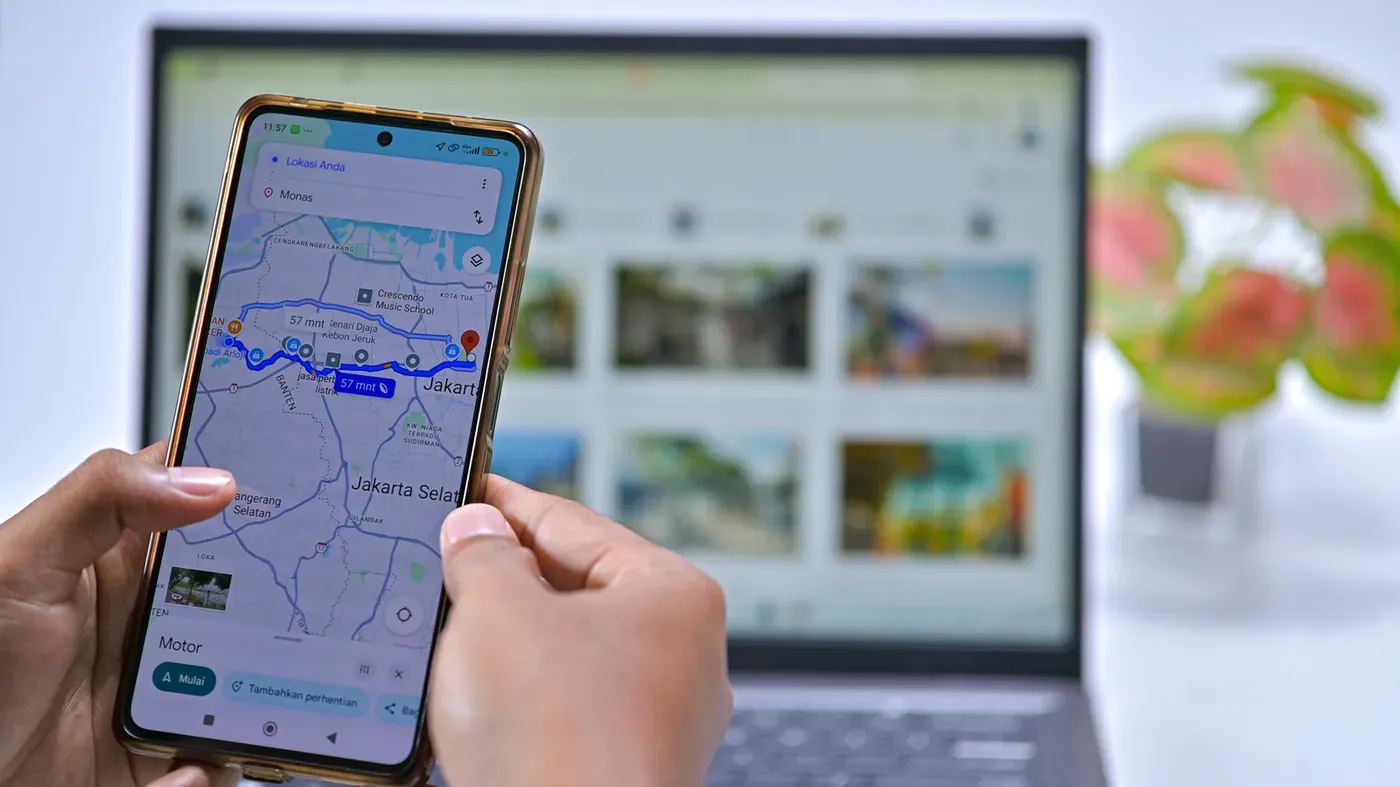
Google Maps has made it easy for users to navigate their daily routes by providing shortcuts for frequently visited locations, including home addresses.
However, if you've recently moved or haven't set your home address in Google Maps yet, now is a good time to do so. You can configure this on either the web version of Google Maps or through its mobile app.
Before setting your home address, it's essential to consider the security implications. If your device falls into the wrong hands, having your exact address stored in Google Maps could be problematic, as unauthorized users could easily access your location by opening the app.
To mitigate this risk, you might want to consider saving a nearby public place like a restaurant or grocery store as your "home instead of your actual residence. This way, navigation is still convenient while minimizing potential exposure.
To edit your home address in Google Maps, start by opening the service in a browser and signing in if you're not already logged in. Once signed in, click inside the search box to see options at the top, including Home and Work entries that can be edited.
To edit or remove a home address on Google Maps, navigate to the top-right of the screen and click on your profile icon. This will direct you to the Manage your Google Account page, where you should select Personal info from the left sidebar.
Scroll down to find the Home address field and enter your current address if it's not already set up. As you type, Google Maps will offer suggestions to help complete the information accurately. If necessary, use the Address line 2 button or tap Choose on map to pinpoint a specific location.
In the Labeled list, you should see both Home and Work entries that can be edited or removed as needed. This is also where you can add new addresses for saved locations, such as public places, which can be useful for navigating your surroundings more efficiently.
The Commute estimates feature relies on having accurate work address information entered into Google Maps. By updating this information, users can ensure they receive the most relevant and up-to-date traffic and transit data when planning their daily commute.
To edit your home or work address on Google Maps, tap the three-dot button next to it and select the Edit option. This will allow you to enter a new address using the search bar at the top of the screen.
As you type, the search results should automatically populate with matching addresses, making it easier to find the correct location. Alternatively, you can use the Choose on map feature to drag a pin to your desired location or select an address that doesn't have a clear mapping match.
You can also customize your home and work addresses by using the Change icon action, which allows you to assign fun and creative icons to these locations. This could be something like a treehouse, submarine, or barn, adding a personal touch to your map.
With custom labels, you can assign friendly names to any location on Google Maps, making it easier to navigate to frequently visited places using voice commands for Android Auto. For example, you might label Gym" instead of having to say the full address every time.
To label a place on Google Maps from your computer or laptop, navigate to the location's panel by clicking on it, then scroll down and select Add a label. On mobile devices, such as phones or tablets, access the More menu by scrolling left on the row of icons below the location's basic information, and choose Add label.
Once you've added a label, the place will appear on the map with its name and a blue icon. The labeled places group is also more organized than lists, which can clutter the display with photos, review scores, opening hours, and other details. Instead, it only shows the name, icon, and address associated with each item.
When searching for contacts on Google Maps, you may also be able to find them by their name if you have saved their addresses in your Google contacts. To ensure this feature works, verify that your Google contacts are synced with your phone and that the Google Maps app has access to your contact list.
Facts based on reporting originally published by Engadget.
You may republish this story, in full or in part, if you credit News Central Site and link to it (licence CC BY 4.0). Photos are not included.