Samsung TV Malfunctions Can Be Resolved with Factory Reset
A factory reset can resolve software-related issues on Samsung TVs by reverting them to their original state.
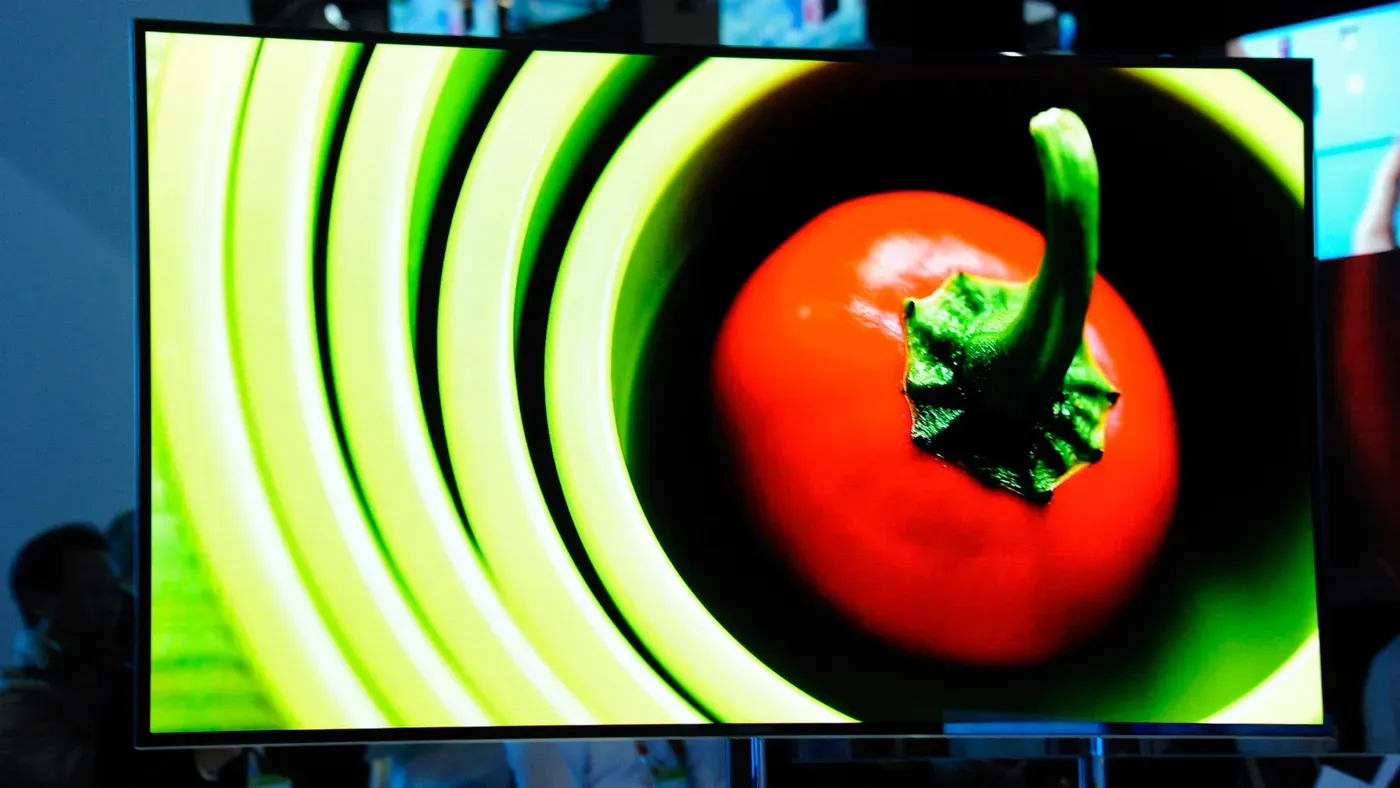
If your Samsung TV is malfunctioning or experiencing issues such as freezing streaming apps, it's worth trying a factory reset to troubleshoot the problem. This technique can be an effective way to resolve software-related issues and get your device back to its original state.
Resetting devices has become a common practice in today's tech landscape, especially when selling or trading gadgets like smartphones and laptops. A factory reset forces a device to revert to its out-of-the-box settings, including installed apps and user preferences. However, this process can be time-consuming and requires redownloading updates and reconfiguring settings.
There are various reasons why a Samsung TV might need a reset, ranging from OS problems like video glitches to issues with specific streaming apps that won't load correctly. Before attempting a factory reset, try simpler troubleshooting steps to see if the problem resolves itself.
A factory reset on a Samsung TV is a relatively straightforward process, but it's essential to note that once triggered, there's no going back to your previous settings. This means you'll need to reconfigure picture and sound preferences, redownload apps, and reinstall OS updates from scratch.
Before attempting a factory reset, try simpler troubleshooting methods, such as restarting the device or checking for software updates. These steps may resolve the issue without the need for a full system restore.
Before initiating a factory reset on your Samsung TV, it's essential to note down any crucial information that may be lost during the process. This includes PIN codes, passwords, streaming app logins, and Wi-Fi router credentials. Having these details written down will save you from potential headaches when trying to access online content again.
To proceed with a factory reset, navigate to the Settings menu from your TV's home screen. Scroll down to the bottom of the menu where you'll find the Reset option. Click on it to begin the process.
As part of the reset procedure, you may be prompted to enter a PIN code, even if you haven't previously set one up. If no custom PIN has been chosen, simply enter 0000 and proceed with selecting OK. This will initiate the factory reset process, which should commence shortly after.
Once you've completed the reset, you'll need to reinstall any necessary updates for Tizen, Samsung's operating system, to ensure your TV remains secure and functional. Periodic Tizen updates may result in menu label changes or rearrangements, but generally speaking, the overall process shouldn't differ significantly across different device generations.
Resetting your Samsung TV can be a daunting task, but there are some less drastic measures to try first.
For minor issues or one-off glitches, you may not need to go all the way with a factory reset. In these cases, trying a soft reset might do the trick. Soft resets come in different forms and are tailored to specific problems that can arise with your TV.
One simple method is to reboot your TV by unplugging it from power for 30 seconds or holding down the power button on the remote for five seconds. This process clears out the TV's RAM and system cache, restarts background processes, and may resolve minor issues. It might seem like a basic solution, but it can be surprisingly effective.
If resetting the Smart Hub is an option, you can do so without performing a full factory reset. This action reverts the Hub to its default settings and wipes associated apps and account information. However, this means you'll need to redownload your apps and log in again after the process is complete.
Resetting network settings may be necessary if connection issues are your primary concern. Before attempting this, it's a good idea to troubleshoot any problems with your router or service provider first. If you're still having trouble, resetting your TV's network settings can provide a fresh start, as long as you have your router's login information handy.
To confirm the network settings reset, select the "Reset Network" option from the menu and click on it again to finalize the action.
After resetting your TV's network settings, you'll need to re-enter your router's SSID and password in order to reconnect to the internet. This step is essential for establishing a stable connection with your router once more.
Facts based on reporting originally published by Engadget.
You may republish this story, in full or in part, if you credit News Central Site and link to it (licence CC BY 4.0). Photos are not included.