Nintendo Switch 2 Connection Troubleshooting Issues
Users experiencing difficulties connecting their Nintendo Switch 2 to TVs may resolve the issue through several troubleshooting steps.
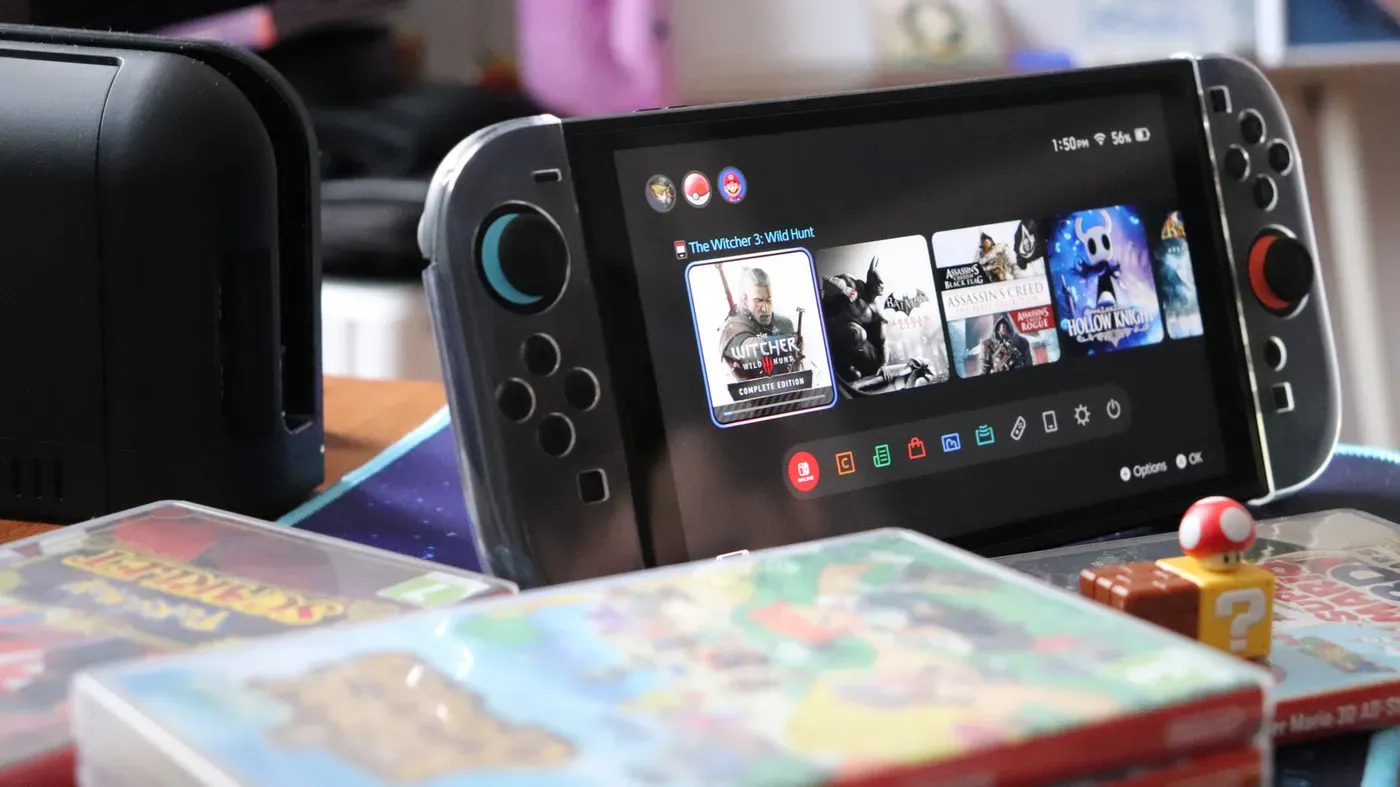
The Nintendo Switch 2 offers unparalleled flexibility in gaming, allowing users to seamlessly transition from playing on its built-in screen to connecting it to a larger TV at home for an immersive experience.
However, some users have reported difficulties getting their Switch 2 to connect to their TVs, resulting in frustrating black screens or unresponsive consoles. Before reaching out to Nintendo support, there are several troubleshooting steps that can be taken to resolve the issue.
The first step is to power off the TV and completely disconnect all cables from the Switch 2 dock. This includes fully unplugging the AC adapter from both the dock and the wall outlet, as well as removing the handheld console from the dock.
After a 30-second break, plug the AC adapter back into the dock and then into the wall socket. Ensure that the handheld screen is facing the front of the dock and is securely slotted in.
It's essential to verify that the dock is properly plugged in and receiving power via its AC adapter, as this is crucial for establishing a connection with the TV. Split or damaged cables can cause power issues, so inspect the connections carefully.
Before connecting your Nintendo Switch 2 to the TV, ensure the power supply is not the issue. Check if the USB plug side of the AC adapter is fully seated in the port and securely plugged into a working wall outlet.
If you suspect the wall outlet might be dead, test it by trying to charge another device using a different charger in that same socket. This will help determine whether the problem lies with your Switch 2 or the power source.
It's also crucial to verify that any third-party AC adapter you're using meets the console's power requirements. The Switch 2 demands more power than its predecessor, necessitating an adapter capable of delivering at least 54W to support continuous TV connection.
To ensure compatibility, check Nintendo's official website for compatible AC adapters, which are available for $35 each. These accessories can be purchased if any components are missing or damaged.
When troubleshooting the HDMI connection, start by inspecting your cable. The Switch 2 comes with a UHS dual-end HDMI cable that supports 48Gbps bandwidth and HDMI 2.1 connections.
Ensure you're using an Ultra High Speed (UHS) dual-end HDMI cable to connect your Switch 2's dock to the TV. Third-party cables can also work if they support UHS, but avoid lower-speed options or cables from previous Nintendo Switch generations.
To troubleshoot connectivity issues between your Nintendo Switch 2 and TV, ensure that you're using a UHS HDMI cable connected to an appropriate port on both devices.
It's recommended to use an HDMI 2.1 port on your TV for optimal performance, as it supports resolutions up to 8K at 60Hz or 4K at 120Hz, which may not be possible with older ports like HDMI 1.0. Although UHS cables are backward-compatible with these ports, the output quality will be limited.
If you're unsure about your TV's port type, check its specifications or contact the manufacturer for confirmation. Even if it's not explicitly marked, many modern TVs, including some LG OLED models, often feature multiple HDMI 2.1 ports that can handle the Switch 2's video output.
When checking your TV's settings, look for options like Auto Low Latency Mode (ALLM), gaming mode, or Input Signal Plus to see if they're enabled for the specific port connected to the Switch 2. These features can improve the gaming experience and help resolve connectivity issues.
To troubleshoot connectivity issues between your Nintendo Switch 2 and TV, start by ensuring the correct HDMI input is selected on your television. This can usually be done through the TV's settings menu, where you'll need to select the port that matches the one where the HDMI cable was inserted.
If the Switch 2 doesn't automatically display onscreen when docked, try pressing the handheld screen's power button while it remains in the dock. It's also crucial to ensure your controllers are fully charged, as this can affect their ability to connect to your device.
If you're still facing difficulties, Nintendo recommends testing a different UHS HDMI cable to rule out any issues with the current one. You may also want to try using a different HDMI port on your TV or switching to a different TV altogether if possible, to help identify the source of the problem.
To address potential software or settings-related issues, remove the handheld from the dock and attempt to turn it on. Make sure the device is running with the latest software by navigating to System Settings > System > System Update, and update it if necessary.
If none of the troubleshooting steps resolve the issue, it's likely that there's a hardware or software problem with the device. In this case, contacting Nintendo support is the next logical step to seek assistance and guidance on how to troubleshoot further.
The support team may require you to send in your dock and console for inspection, which can be done by following their instructions and sending it back to them.
Facts based on reporting originally published by Engadget.
You may republish this story, in full or in part, if you credit News Central Site and link to it (licence CC BY 4.0). Photos are not included.