Microsoft Releases PowerToys Update with Two New Tools
Microsoft has released an update to its free PowerToys utility that addresses two common issues related to mouse usage. The update includes two new tools: Mouse Button Lock and CursorHide.
Troubled mouse users can breathe a sigh of relief as Microsoft has released an update to its free PowerToys utility that addresses two common issues. Selecting large blocks of text often proves to be a challenge for many, while the mouse cursor may also obstruct what's being typed or viewed.
Two new tools have been added to the latest version of PowerToys, which is now available for download from various sources. The first tool is called Mouse Button Lock and the second one is known as CursorHide. These features aim to resolve the aforementioned issues.
To get started with using these new tools, users will need to either install PowerToys from scratch or update an existing installation. For those who are new to PowerToys, they can head over to the Microsoft Store page and click on the Download button. Alternatively, users can visit the PowerToys GitHub page and select the correct executable file for their version of Windows.
Once installed, updating to the latest version is a straightforward process that can be initiated from within the program itself. Users can open PowerToys from either the Start menu or the System Tray and click on the button to check for updates. Alternatively, they can select the notice to grab the latest version directly.
When using PowerToys, navigate to the Input & Output category and click on Mouse Utilities to access two new features: Mouse Button Lock and CursorHide. These tools can be enabled or disabled at will by flipping their respective switches.
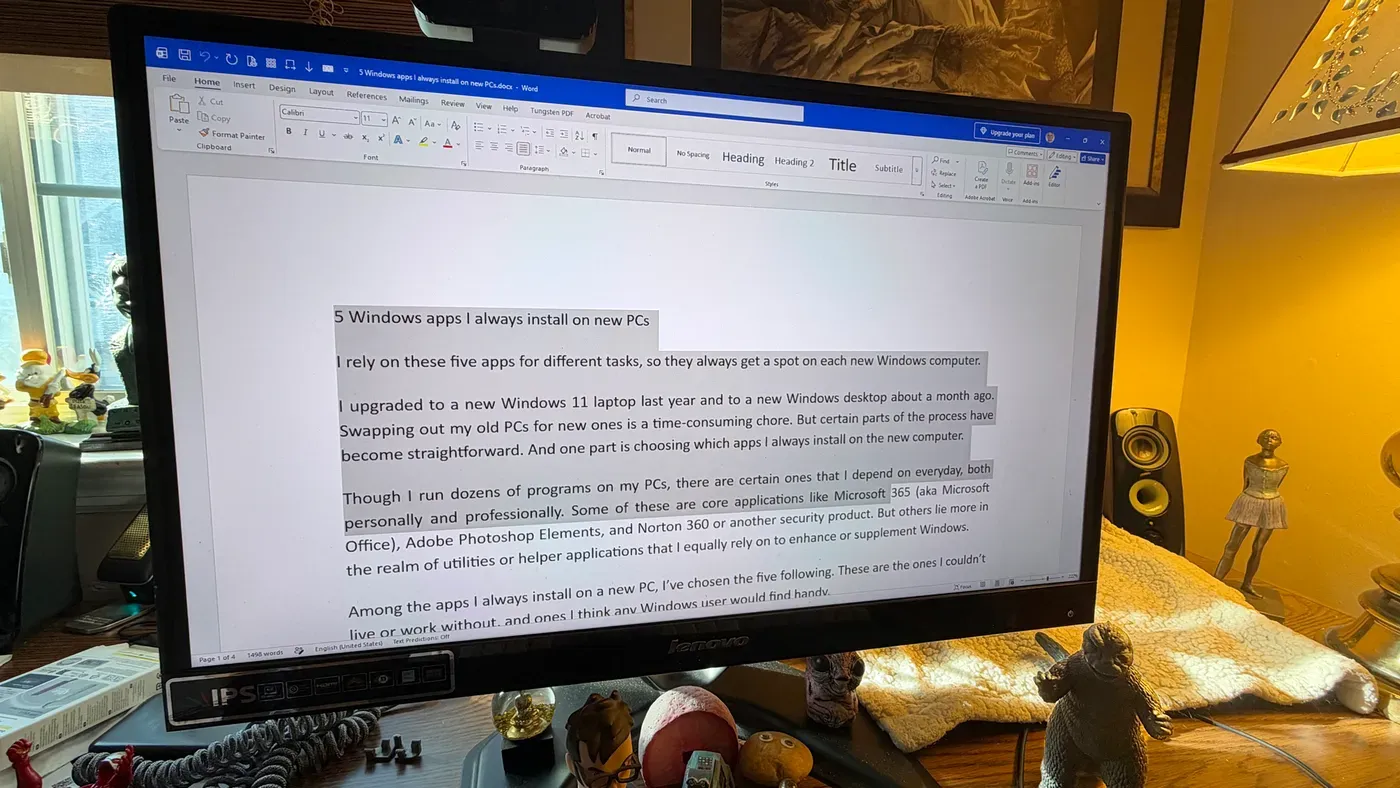
Mouse Button Lock is a feature that allows users to select large blocks of text more easily. Normally, selecting text requires holding down the left mouse button throughout the process, which can be cumbersome for long passages that span multiple sections or pages.
With Mouse Button Lock activated, you can hold down a mouse button briefly and then release it, allowing you to move your cursor towards the end of the block you wish to select. The text will automatically be selected along the way, and clicking the mouse button again will stop the selection process.
This functionality is similar to the ClickLock setting built into Windows, which can also be accessed through the Accessibility settings. To do this, go to Settings and navigate to the Interaction section under the Mouse tab, where you'll find the option for ClickLock.
The PowerToys version of this feature offers greater flexibility and customization options compared to its native Windows counterpart. Users can choose which mouse button serves as the trigger for this functionality, selecting from the left, right, or middle mouse buttons. Additionally, the duration of the selection can be set with more precision in milliseconds.
When using this feature, it's essential to move your cursor to the starting point of the area you want to select and hold down the chosen button for a specified amount of time. For example, if the duration is set to 1.5 seconds, you should hold the button down for approximately that length of time before releasing it.
Once the button is released, you can then move your mouse to the end of the area you want to select. As you move along, the text will be selected in real-time, allowing you to visually track the selection process. This makes it easier to select large areas of text without having to manually drag and drop the cursor.
When you reach the desired endpoint, simply click the chosen button again to stop the selection process. With practice, this method can become a convenient way to handle text selections, especially for users who frequently work with large blocks of text.
When typing text or trying to focus on a specific area on the screen, the mouse cursor can sometimes get in the way. A new feature in PowerToys aims to address this issue by hiding the cursor while you're typing or after a period of inactivity.
To enable this feature, users need to click on the "CursorHide entry in the Mouse Utilities section within PowerToys and toggle the switch to the on position. From there, they can choose to hide the cursor during keyboard input, after a certain period of inactivity, or both options simultaneously.
One of the customizable settings for this feature allows users to set a delay before the cursor disappears when it's not being used. This delay can range from 1 to 60 seconds, giving users flexibility to determine how long they want their cursor to remain visible before hiding again. For example, setting the delay to 5 seconds will cause the cursor to disappear after that amount of time if it hasn't been moved.
When using an application or document where text input is required, activating the CursorHide" feature can be useful in minimizing distractions and allowing users to focus on their work. Simply moving the mouse around the screen should make the hidden cursor reappear, providing a convenient way to switch between typing and viewing the cursor as needed.
The PowerToys suite of tools offers a range of features that can enhance productivity and simplify tasks on Windows devices. One of these tools is Find My Mouse, which allows users to locate their mouse pointer or cursor when it becomes difficult to see.
In addition to the mouse utilities, PowerToys also includes other useful tools such as Mouse Highlighter. This feature visually highlights the area where a user clicks with the mouse, providing a clear indication of the action taken.
By exploring and utilizing these features, users can unlock new functionality in their Windows devices and streamline their workflow.
Facts based on reporting originally published by ZDNet.
You may republish this story, in full or in part, if you credit News Central Site and link to it (licence CC BY 4.0). Photos are not included.