Windows PC Users Targeted by Fake Virus Pop-Ups
A recent study by Barracuda found that over 2.8 million people have been affected by a browser-based scareware called CypherLoc since the beginning of this year.
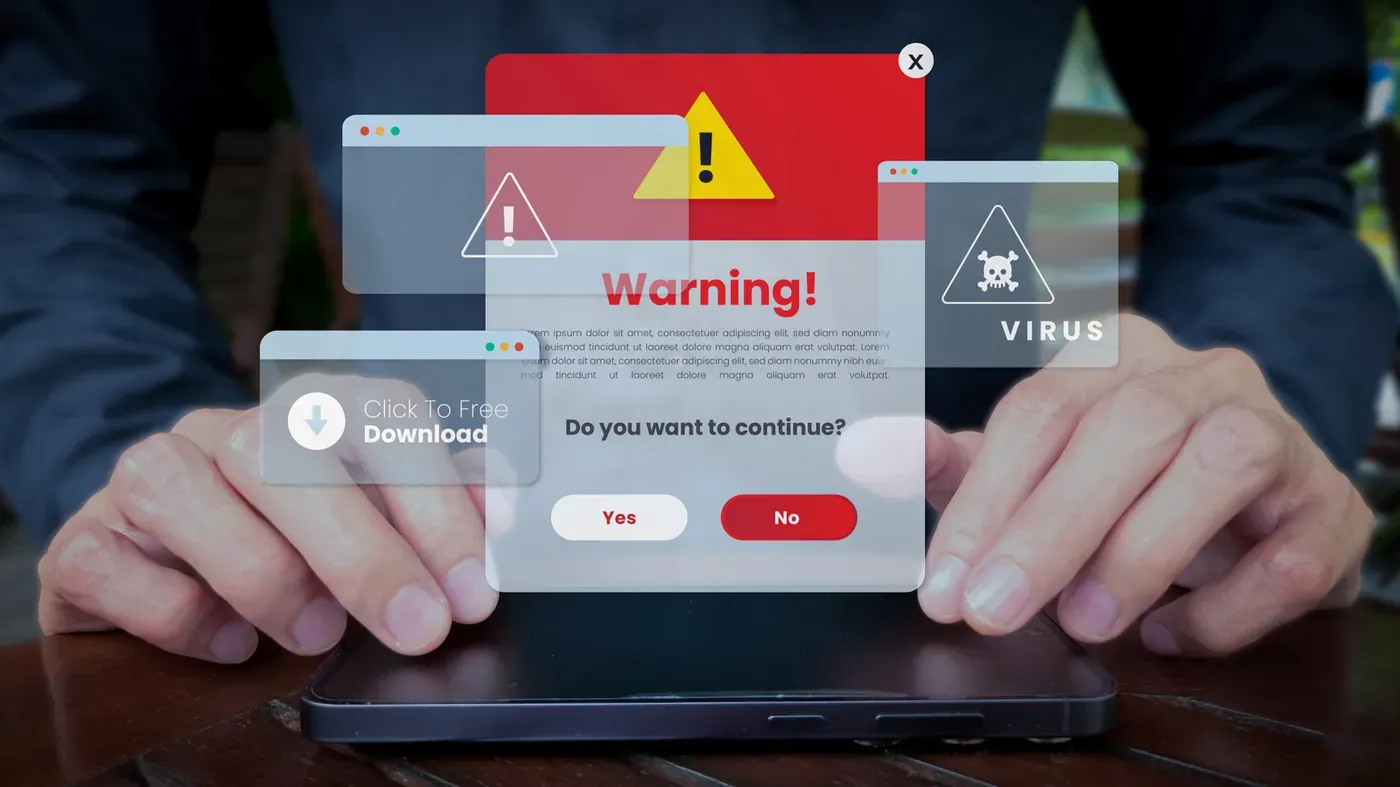
A disturbing trend has emerged where Windows PC users are being targeted by fake virus pop-ups that aim to trick them into installing malicious software.
These alarming warnings typically appear as urgent notifications when browsing online, claiming that a computer has been infected with a virus. However, it's essential to note that most of these alerts are fabricated and designed to create panic among unsuspecting users.
Cybersecurity experts have dubbed this tactic "scareware, as its primary goal is to induce fear in the targeted individuals. Scareware attacks are not uncommon and can be particularly convincing.
According to a recent study by security firm Barracuda, one strain of browser-based scareware called CypherLoc has affected over 2.8 million people since the beginning of this year. The malicious software seeks to gain control over users' computers or steal their financial information.
When tricked into believing their computer is infected, users are often directed to contact a fake tech support hotline or download an anti-malware scanner that poses as legitimate but is actually harmful.
These fake virus pop-ups are designed to create a sense of urgency and panic in users, often using alarming language and visuals to make it seem like their computer is under attack.
The pop-ups typically involve dramatic wording such as Critical Threat Detected! and may incorporate flashing lights, bright colors, and even alarm sounds to increase the scare factor. Some versions may even use a robotic voice to announce a critical Microsoft security alert or display the user's IP address on screen.
Some of these scams attempt to gain credibility by using the names of well-known security companies such as McAfee Security Software or Windows Defender. However, this is not always a guarantee that the pop-up is legitimate.
Fake virus attacks can manifest in two ways: through browser pop-ups or the computer's notification center. Both methods often result from opening an unsafe link or visiting a malicious website, although rogue ads can sometimes slip through even on reputable pages.
Cybercriminals exploit advertising spaces to redirect users to fake security warning pages when they click compromised banners. These pop-ups are frequently forced into full-screen mode, with the mouse cursor hidden to create the illusion of being trapped.
When you visit a new site that requests permission to send notifications, you may be asked to click Allow under false pretense, such as clicking to read more content. Once granted, the site can send push notifications directly through Windows' notification center, making them appear like official warnings from Microsoft.
When dealing with suspicious pop-ups claiming your Windows PC is infected with a virus, it's essential to remain calm and take swift action to prevent further damage.
The first step is not to engage with the pop-up by clicking on any links or buttons. These types of notifications often hijack your browser and can be challenging to close without inadvertently visiting malicious websites.
To efficiently handle the situation, use your browser's built-in task manager to terminate the offending tab. For Chrome, Edge, and Firefox users, this can be done using the shortcut Shift + Escape.
Alternatively, look for a tab with an unusual label such as Security Alert!" and close it by clicking End Task or the X button located to the right of the process. If your browser is in full-screen mode, press F11 to exit that state and access the task manager more easily.
If closing the tab doesn't resolve the issue, force-quit your browser entirely. This can be done by opening the Task Manager using Ctrl + Shift + Esc , then clicking on the Processes tab on the left side of the screen.
In some cases, you may need to use the keyboard shortcut Ctrl + Alt + Del and open the Task Manager from that menu. Once in the Task Manager, click on Name to sort active apps at the top, then right-click your browser and choose End task .
When restarting your browser, be cautious not to reopen any closed tabs if you have that option enabled. This is because it may reload the scam page again, perpetuating the problem.
To further prevent notifications from reappearing, delete recent cookies and site data from your browser using Ctrl + Shift + Del on Chrome and Edge.
The Windows PC can fall victim to fake virus pop-ups due to various factors, including browser extensions.
To identify and remove potential culprits, users can access their browser's extension list by clicking the puzzle piece icon in the top-right corner of the screen. From there, they can manage installed extensions and delete any unknown or unused items.
These measures may not be enough to completely eliminate pop-ups, as infected computers often do not display flashing warnings.
Regular computer scans are essential for detecting subtle malware that could be silently running on a device. Windows offers built-in protection through Microsoft Defender, which is suitable for most users.
To further enhance security, additional software can be downloaded for a second opinion. Malwarebytes, a free tool with an on-demand scanner, serves as a reliable backup option.
Facts based on reporting originally published by Engadget.
You may republish this story, in full or in part, if you credit News Central Site and link to it (licence CC BY 4.0). Photos are not included.