Monitor Problems Can Be Caused by Loose Connections or Faulty Cables
A flickering screen on your monitor can be caused by various issues, including loose connections, faulty cables, outdated graphics drivers, and incorrect settings.
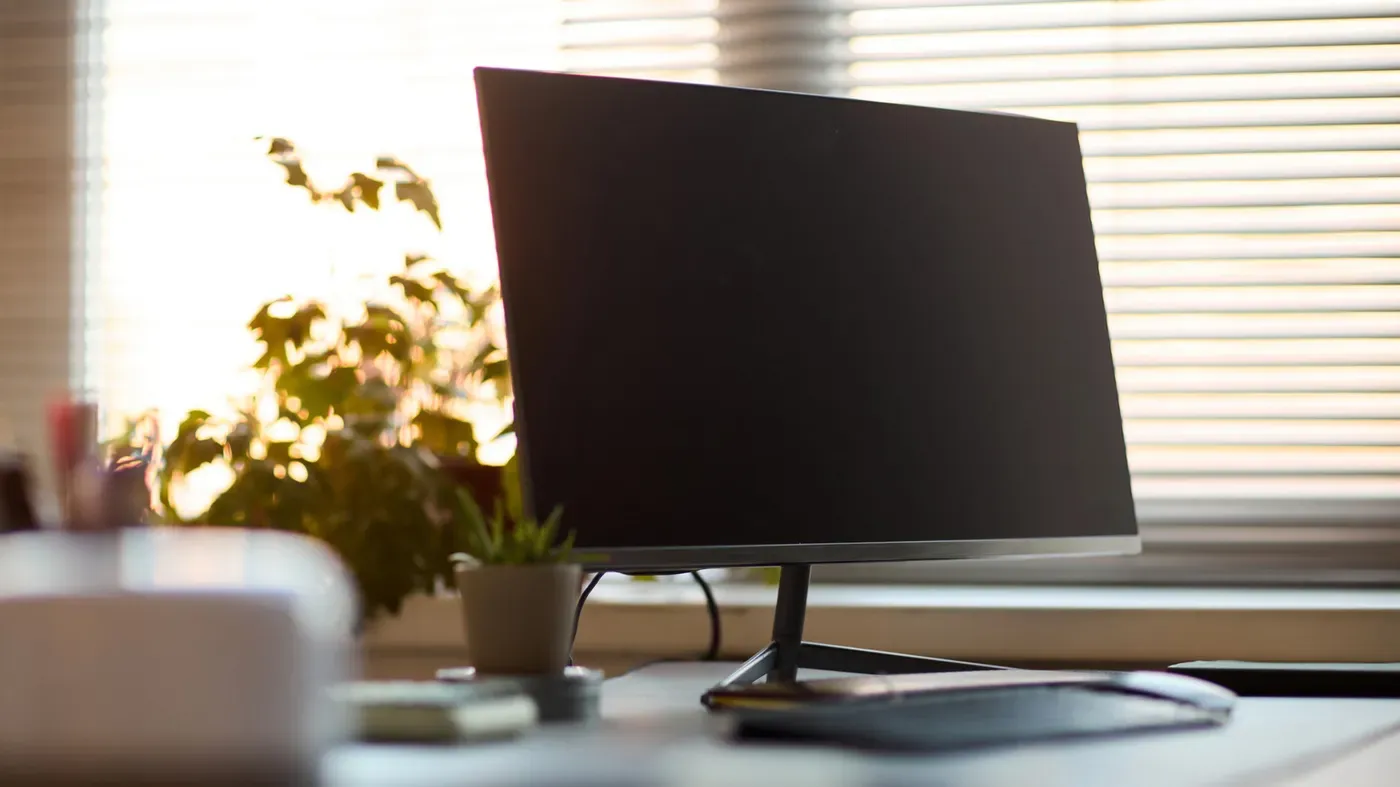
Monitors are now more affordable than ever, but that doesn't mean they're immune to problems. If you've noticed your screen flickering when you turn it on, it's not just a minor annoyance - it could be a sign of something more serious.
Gaming and work can take a toll on our computer peripherals, including monitors. One common issue is the display cable itself, which might be loose or damaged. This is often the case with modern HDMI or DisplayPort cables, but older VGA connections are also susceptible to problems.
The good news is that troubleshooting your monitor is relatively straightforward. By checking the cables and connections, you may be able to identify the source of the issue. In many cases, simply reinserting the cables or replacing a damaged one can resolve the problem.
A flickering screen can have various causes, ranging from loose connections to more complex hardware issues. One possible explanation is that your monitor's display cable has become dislodged or is faulty in some way.
A faulty cable or port can cause a flickering monitor, but it's not the only possibility. Swapping out the display cable for a new one may resolve the issue if that's indeed the problem. If there are multiple ports on both the monitor and computer, try using a different port to rule out any issues with the current setup.
However, if replacing the cable doesn't work, it's worth investigating other potential causes of the flickering screen. One option is to test whether the issue persists when connected to a different computer that you know works properly. This will help isolate the problem and determine if it's related to the computer or the monitor itself.
Graphics drivers can also be a source of display problems, including flickering monitors. If your graphics drivers are outdated, updating them may resolve the issue. Conversely, updating drivers can sometimes cause new problems, so rolling back to a previous version may be necessary in some cases.
It's essential to consider other factors that could be contributing to the problem. For instance, if the monitor is set to run at a specific refresh rate but your computer's settings don't match, this mismatch can cause display issues. To fix this, go to your computer's Settings and navigate to System on the left panel.
In the Display section, look for Advanced display options, where you can adjust the refresh rate to match your monitor's capabilities. Make sure that your computer's settings are aligned with the requirements of your monitor to avoid any further problems.
To troubleshoot this issue, it may be necessary to experiment with different combinations of cables and ports or try updating graphics drivers. By methodically ruling out potential causes, you can identify the root of the problem and take steps to resolve it.
When a monitor flickers persistently after initial troubleshooting efforts have failed, it's likely that the issue lies deeper than a simple hardware or software problem.
A consistent, almost stuttering pattern of flickering is often an ominous sign that the monitor is nearing a complete failure, and may be on the verge of shutting down completely.
In some cases, the display may also experience sudden blackouts before returning to normal operation, providing further evidence that something is amiss with the monitor's internal workings.
Other telltale signs of a malfunctioning monitor include faded or dim colors, as well as vertical lines that appear to be in motion across the screen. By examining these symptoms and comparing them to similar issues on a TV, it may be possible to diagnose the problem more effectively.
Ultimately, if all other options have been exhausted without resolving the issue, it's probably time to consider replacing or repairing the monitor, with the cost of new OLED and 4K screens becoming increasingly affordable.
Facts based on reporting originally published by Engadget.
You may republish this story, in full or in part, if you credit News Central Site and link to it (licence CC BY 4.0). Photos are not included.