GTA 6 Console Performance Issues Revealed
Players have discovered a workaround to bypass GTA 6's 30 fps cap on Xbox consoles, but the game still experiences frame rate drops.

GTA 6's high demands on console hardware have been well-documented, but some players are finding that their systems aren't quite meeting those expectations.
Xbox owners, in particular, have discovered a way to bypass the game's 30 fps cap by manipulating the console's output settings and using Quick Resume. However, this workaround doesn't provide a seamless experience, as evidenced by Digital Foundry's testing, which revealed an average frame rate of around 36 fps over an hour of play.
The limitations in GTA 6's performance are largely due to the game's reliance on the processor, rather than any issue with graphics rendering. This is evident from the fact that even a modified Series X can only squeeze out six extra frames per second when its 30 fps cap is lifted.
For players who want to optimize their console for GTA 6, there are several potential issues to investigate. A system that's no longer up-to-date or running in a stale session could be holding back performance, as could dust buildup or incorrect drive settings.
I've been playing GTA 6 on an original-model PS5 since its release and have noticed some minor dips below 30 fps during certain activities. These drops are relatively infrequent but still noticeable, especially when driving through cities or engaging in intense combat scenarios.
The PS5 Pro seems to perform better overall, with stress tests indicating that it consistently maintains 30 fps, except in extreme situations where the frame rate drops to around 24 fps.
Further investigation into console settings and hardware is necessary to determine whether these issues are widespread. In the next part of this article, we'll explore specific steps players can take to ensure their system is running at optimal levels for GTA 6 performance.
The performance of GTA 6 on next-gen consoles has been a topic of discussion among gamers. The Xbox Series X generally maintains its frame rate target of 30 fps but can experience drops during intense scenes and explosive events.
However, the Xbox Series S struggles to keep up with the game's demands. It often hovers between 25 and 30 fps, dropping as low as 20 in busy areas or when vehicles are involved in explosions.
Consoles lack built-in frame rate counters, making it difficult for players to monitor their performance directly. One way to gauge the frame rate is to observe the game's smoothness. If the action becomes choppy during firefights, police chases, or other intense scenes, it may indicate that the frame rate is dropping.
This stuttering can be a normal occurrence on current-gen console hardware, but if it happens during cutscenes or while walking or driving normally, there might be an issue with the console. It's essential to note that this behavior should not persist in these situations.
Rockstar's technology production director Marc Chambers has stated that even the PS5 Pro's processor is not powerful enough to support native 40 or 60 fps modes for GTA 6. This decision has been a subject of controversy among gamers and developers alike.
The first post-launch update for GTA 6 was released on November 23, addressing several issues that caused the game to crash or stall during playthroughs. However, there is no mention of frame rate or performance improvements in the patch notes.
Players can check if their game is up to date by going to the main menu and pressing the Options button on their controller. On Xbox consoles, players should navigate to My games & apps, choose Manage, and then check for updates under the Updates section.
GTA 6's massive size of 212GB can be a concern for console storage, especially considering that installing data requires roughly twice as much free space as the install size. This means that consoles with limited storage capacity may struggle to install the game or its updates.
The issue of error CE-108255-1 persists even after recent updates, with players still reporting problems on November 25.
Sony's troubleshooting guide for crashes suggests updating to the latest system software and starting a new save if errors persist. Deleting and reinstalling the game is listed as a last resort.
Rockstar Games' Quick Resume feature on Xbox Series X and S has been identified as a key contributor to the frame rate glitch. This feature saves and reloads game states when switching between games, but it also enables the glitch by temporarily removing the 60fps cap.
The feature works by setting the console's refresh rate to 60Hz, launching GTA 6, then switching to 120Hz on the loading screen before jumping back in through Quick Resume. This relaunches the game without its intended framerate limit, allowing it to run faster but also increasing the risk of crashes and bugs.
In tests conducted by Digital Foundry, an uncapped Xbox Series X was found to struggle with high frame rates even under ideal conditions. The console managed only 60fps when flying a plane in a clear sky and around 40fps on highways with light traffic.
However, it was unable to reach 60fps in more demanding scenes, such as busy streets, barely scraping together 30fps. Digital Foundry concluded that achieving 60fps is currently beyond the capabilities of current hardware.
To reset GTA 6 on Xbox, users can press the Xbox button and highlight the game before selecting Quit from the menu. Alternatively, they can manually configure which games use Quick Resume through the Manage game and add-ons settings, a feature introduced by Microsoft in April to address issues with the feature's behavior in certain titles.
The PS5's rest mode suspends games in a state of suspended animation, allowing users to quickly resume where they left off without having to reload or restart their game entirely. Closing GTA 6 by selecting its icon on the main menu and choosing Close Game, or turning the console off completely, achieves this same effect. However, saving your game regularly is crucial since you won't have the luxury of relying on sleep mode as a backup.
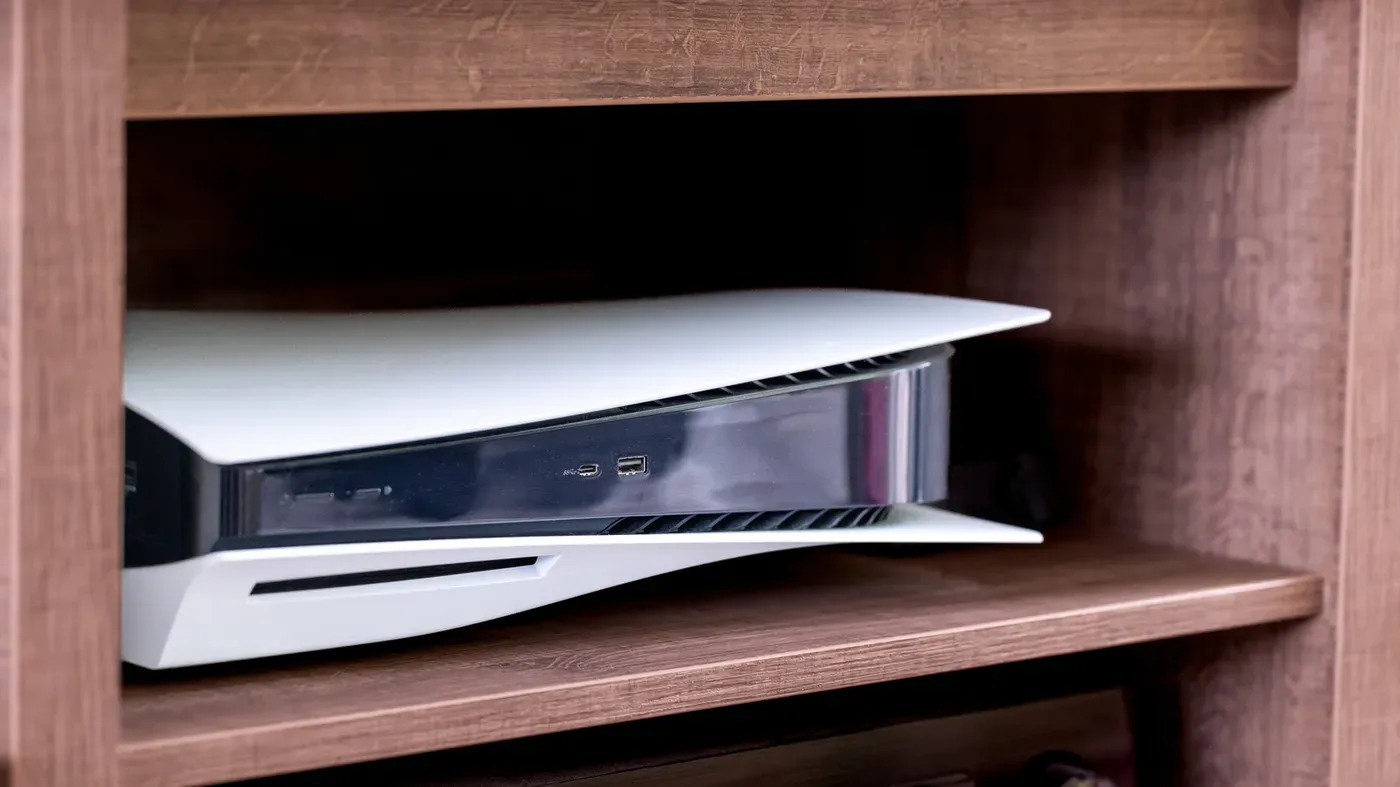
To ensure optimal performance from your PS5, it's essential to follow Sony's safety guidelines for console placement. This includes keeping the device at least 4 inches away from walls and other heat sources, avoiding cramped spaces or closed cabinets, and placing it on a flat surface rather than long-pile carpets. Additionally, regular cleaning of the vents is necessary to prevent dust buildup.
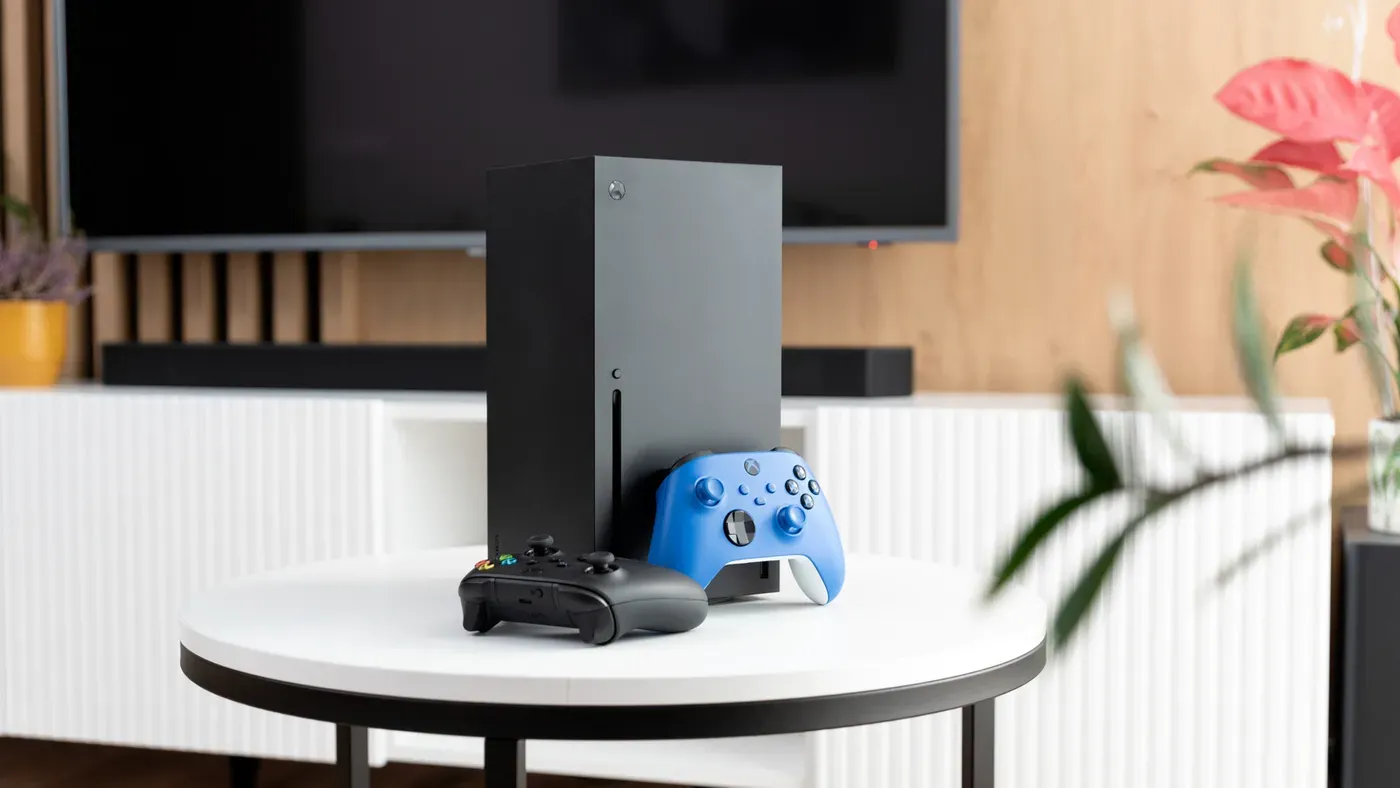
The Xbox's ventilation requirements are similar, with Microsoft recommending a well-ventilated area that's relatively cool and free from direct sunlight or other heat sources. It's also essential to avoid overcrowding the console by keeping it clear of objects placed on top of it, under it, or right next to it. This will help prevent overheating issues that can cause system crashes.
While neither Sony nor Microsoft explicitly states that a hot console will lead to slower gameplay, heat stress can accelerate component degradation and reduce overall system lifespan. If your PS5 becomes too warm, an on-screen warning will appear, prompting you to switch it off and allow it to cool down before resuming use. On Xbox consoles, poor ventilation or overheating is one of the two primary causes for sudden shutdowns without warning.
The relationship between heat stress and console performance has been a topic of debate since GTA 6's release. Some have speculated that overheating may be contributing to the PS5 crashes experienced by some users, possibly due to degradation of the liquid metal used in the processor-cooler interface. A clean console isn't a cure-all for hardware limitations or faults but can rule out heat as a potential culprit.
Regular maintenance and proper placement of your console are essential to prevent overheating issues that can lead to system crashes or shutdowns. While a hot console may not directly impact gameplay performance, it's crucial to address heat-related problems promptly to avoid damage to the device and ensure optimal gaming experience.
When cleaning your PS5, it's essential to follow Sony's guidelines first. Before you begin scrubbing away at any dust or dirt, make sure to unplug your console and wipe down its exterior with a soft, dry cloth.
To ensure GTA 6 runs smoothly on your console, keep in mind that the game requires significant storage space - up to 212GB of free space on both consoles. This might prompt you to consider installing the game on an external M.2 SSD connected via the expansion slot. However, it's crucial to choose a drive that meets Sony's specifications.
When selecting an M.2 drive for your PS5, look for one with a sequential read speed of at least 5,500 MB/s. Not only is this recommended by Sony, but it's also required if you want to use the expansion slot effectively. Furthermore, ensure the drive comes equipped with a heatsink or similar cooling system.
GTA 6's performance can be impacted by its reliance on console storage, particularly when navigating dense environments like Leonida. Tests have shown that frame rate drops occur in situations where AI and streaming are heavily loaded, putting additional strain on the console's storage capabilities.
If you've installed GTA 6 on an M.2 drive and experience stuttering or performance issues, try moving the game back to internal storage. On your PS5, navigate to Settings > Storage > M.2 SSD Storage > Move Games and Apps to relocate the game as needed.
In conclusion, addressing storage-related concerns is crucial for a seamless GTA 6 gaming experience on both consoles.
Facts based on reporting originally published by Engadget.
You may republish this story, in full or in part, if you credit News Central Site and link to it (licence CC BY 4.0). Photos are not included.