Galaxy Z Fold 8 Review: A Customizable Phone with Limitations
The Galaxy Z Fold 8 offers a highly customizable software experience and sleek design, but has limitations in its cover screen customization options.

The latest phone to capture my attention is the Galaxy Z Fold 8, a foldable device that has managed to maintain its appeal even after several months on the market.
A key factor in this phone's enduring charm is its sleek and symmetrical design, which feels surprisingly thin and lightweight despite its large size.
However, it's not just aesthetics that set the Galaxy Z Fold 8 apart - its software experience is also highly customizable, allowing users to tailor their settings to suit their preferences.
Out of the box, the phone's software can feel a bit restrictive, with a locked home screen layout on the cover display and camera settings that don't quite live up to their potential.
Fortunately, these limitations can be easily overcome by diving into additional tools beyond the standard Settings menu - but only after investing some time in setting up the device.
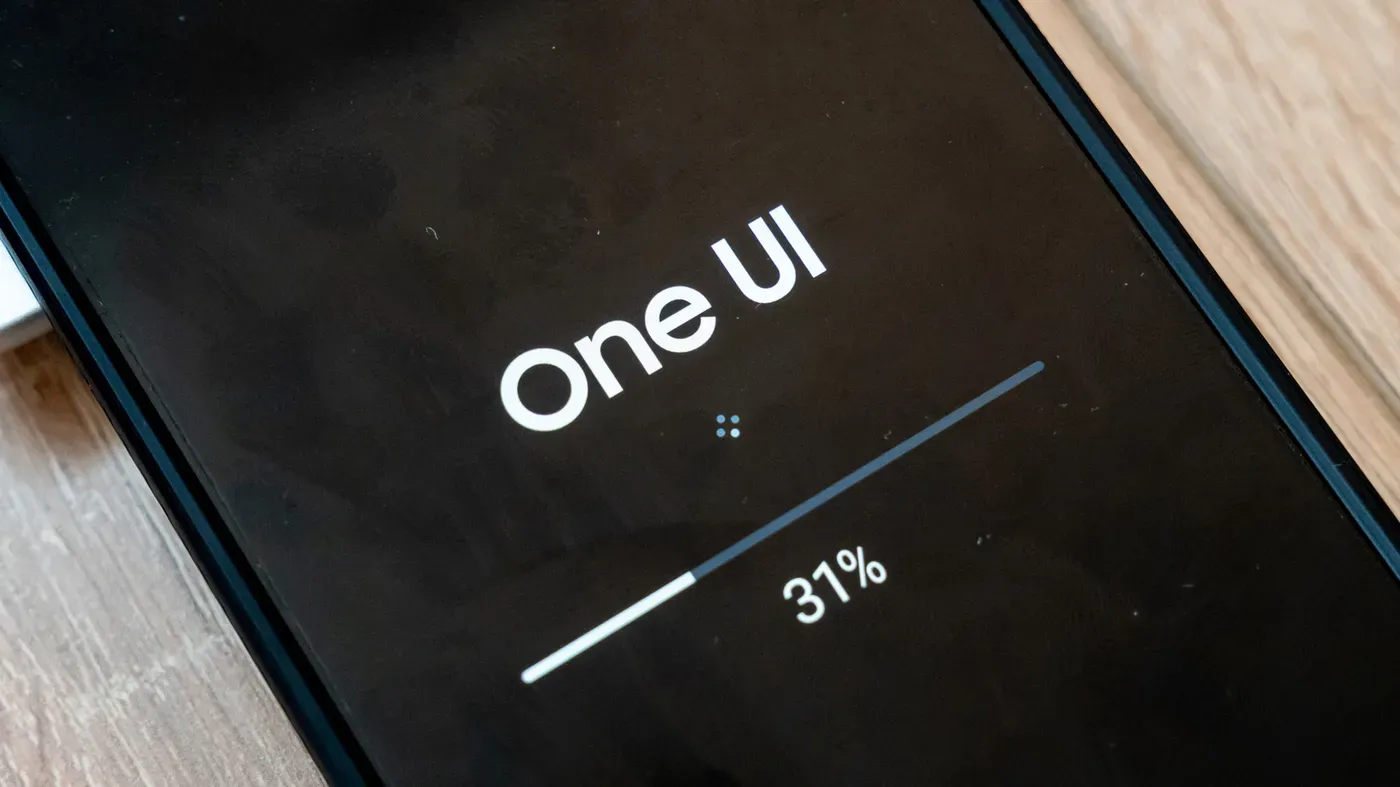
The process of getting the most out of the Galaxy Z Fold 8 involves installing a few apps, tweaking various settings and adding new plugins through Samsung's Good Lock app.
The Galaxy Z Fold 8's cover screen has limitations when it comes to customization. Specifically, users are restricted to a four-column layout on their home screen, even if they reduce the icon size. This can result in wasted space and an inefficient use of the available real estate.
To make better use of this space, consider downloading the Home Up plugin through Samsung's Good Lock app. Located under the Plugins tab, it allows users to change the layout and place icons anywhere on the home screen. With this feature, users can arrange up to seven apps in a row or column for a 7-by-7 layout.
One of the benefits of installing the Home Up plugin is improved organization and aesthetics. By placing frequently used apps and folders on one side of the home screen, users can access them quickly with minimal hand movement. This can be particularly useful when using the device in one-hand mode.
System UI elements located on the left side or top of the screen can also pose a challenge for ergonomic use. For instance, accessing the Quick Settings Panel requires a swipe down from the top, which can necessitate readjusting one's grip. To mitigate this issue, users may want to consider installing One Hand Operation Plus.
This additional plugin allows users to reassign system UI elements to more accessible locations on the screen. By doing so, they can minimize the need for hand adjustments and maintain a comfortable grip on the device. This feature is particularly useful for those who prioritize one-hand use.
The combination of Home Up and One Hand Operation Plus plugins can significantly enhance the user experience on the Galaxy Z Fold 8. By optimizing layout and reassigning system UI elements, users can make better use of the available space and enjoy a more seamless interaction with their device.
With Good Lock plugins, users have more control over their Galaxy Z Fold 8's layout and functionality. One such plugin is the ability to add gesture handles to both sides of the screen, allowing for customizable interactions.
The left and right side gestures can be programmed to perform various tasks, including reassigning Android's default swipe back gesture. This added flexibility enables users to personalize their device according to their preferences.
One Hand Operation Plus offers even more customization options by letting users add up to six shortcuts within the Short swipe and Long swipe gestures. Straight, Diagonal up, and Diagonal down swipes are among the choices available for these shortcuts.
Customizing these gestures can greatly enhance daily usage of the Galaxy Z Fold 8. For instance, setting a diagonal swipe down from the right side to access Quick Settings can be a convenient change over time.
In addition to gesture customization, users can also fine-tune their device's touch area by adjusting the Width, Size, and Position within One Hand Operation Plus settings. This allows for more precise control when interacting with the screen.
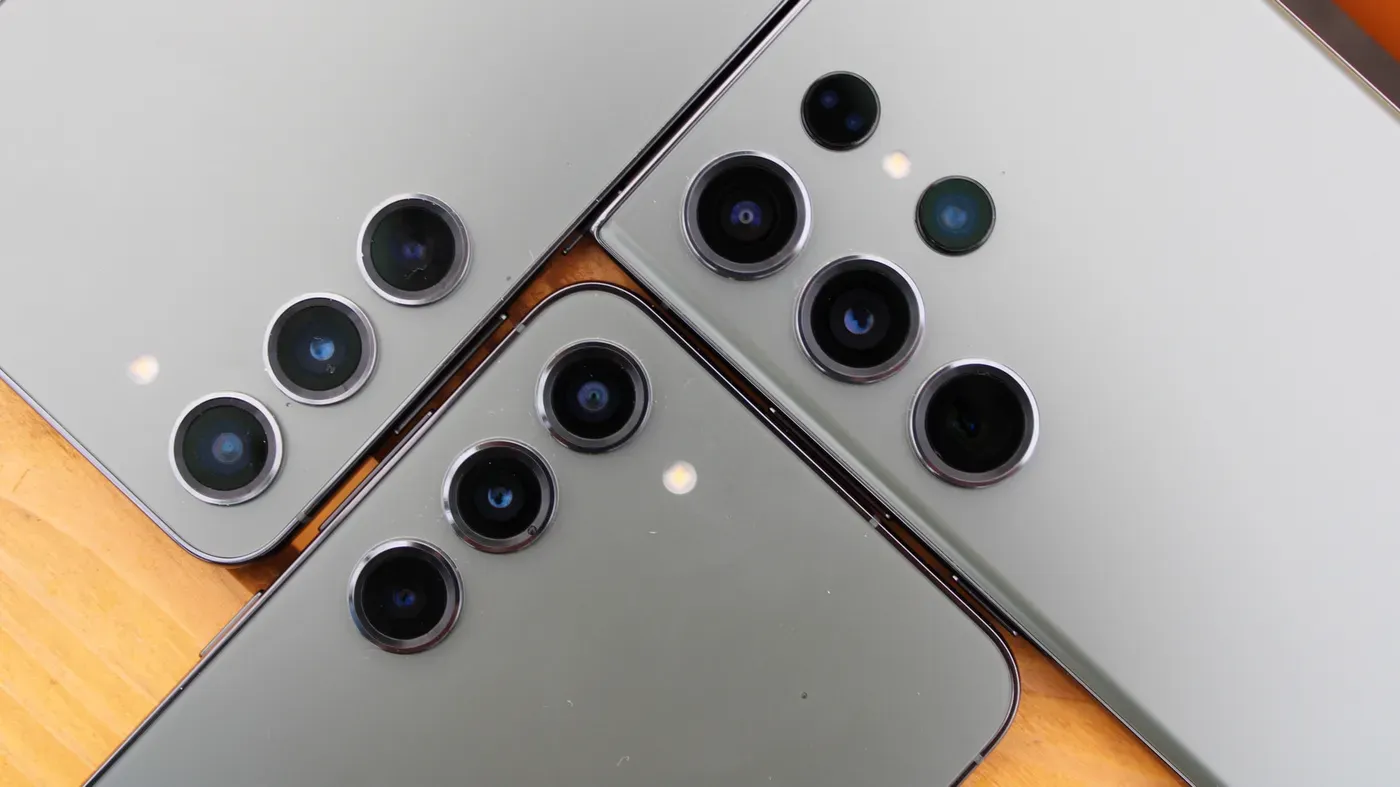
The Galaxy Z Fold 8's camera capabilities have limitations compared to its siblings, such as the lack of a telephoto lens for optical zoom. However, users can still improve digital zoom results by adjusting settings within the Camera app.
When using the Galaxy Z Fold 8's camera features, many users overlook a crucial tool that can significantly enhance their photography experience: the Samsung Camera Assistant app.
To access these hidden settings, navigate to the Camera app on your device and tap the four-dot menu in the top right corner. This will open up a range of options, including Settings > Camera Assistant > Install. Installing this app is highly recommended for anyone looking to get the most out of their Galaxy Z Fold 8's camera capabilities.
One of the first settings you should adjust is the resolution. While the default setting is 12 megapixels, it's worth changing this to 24 megapixels for more detailed shots and better results at both 2x and 4x zoom levels. This can be done by going into the Camera settings and making the necessary adjustments.
When you're in the Camera Assistant app, take a moment to enable the 2x crop zoom shortcut. This simple tweak will allow you to access 2x zoom more quickly from within the viewfinder, streamlining your photography workflow.
By setting the default resolution to 24 megapixels, users can achieve sharper photos with improved clarity at both 1x and 0.6x zoom levels without sacrificing too much storage space. For optimal results at 4x zoom, consider switching to a 50-megapixel resolution for images that rival those posted on Instagram.
The Galaxy Z Fold 8 offers a revamped multitasking experience that maximizes its dual screens. By default, the device splits the screen into a 90:10 ratio, allowing users to have one application take up most of the space while still having another app visible.
This configuration is particularly useful when working on documents and needing quick access to reference materials. The user can type away in a Google Doc without interruption, with their research material conveniently displayed alongside.
Dragging and dropping apps within this multitasking mode has also become more intuitive. Users must first navigate to the Recents menu by swiping up and holding on the home screen, before tapping and holding an app to relocate it to either half of the screen or use as a pop-up application.
The Recents menu retains user-defined app groupings for easy access, making it effortless to switch between multiple applications.
Facts based on reporting originally published by CNET.
You may republish this story, in full or in part, if you credit News Central Site and link to it (licence CC BY 4.0). Photos are not included.