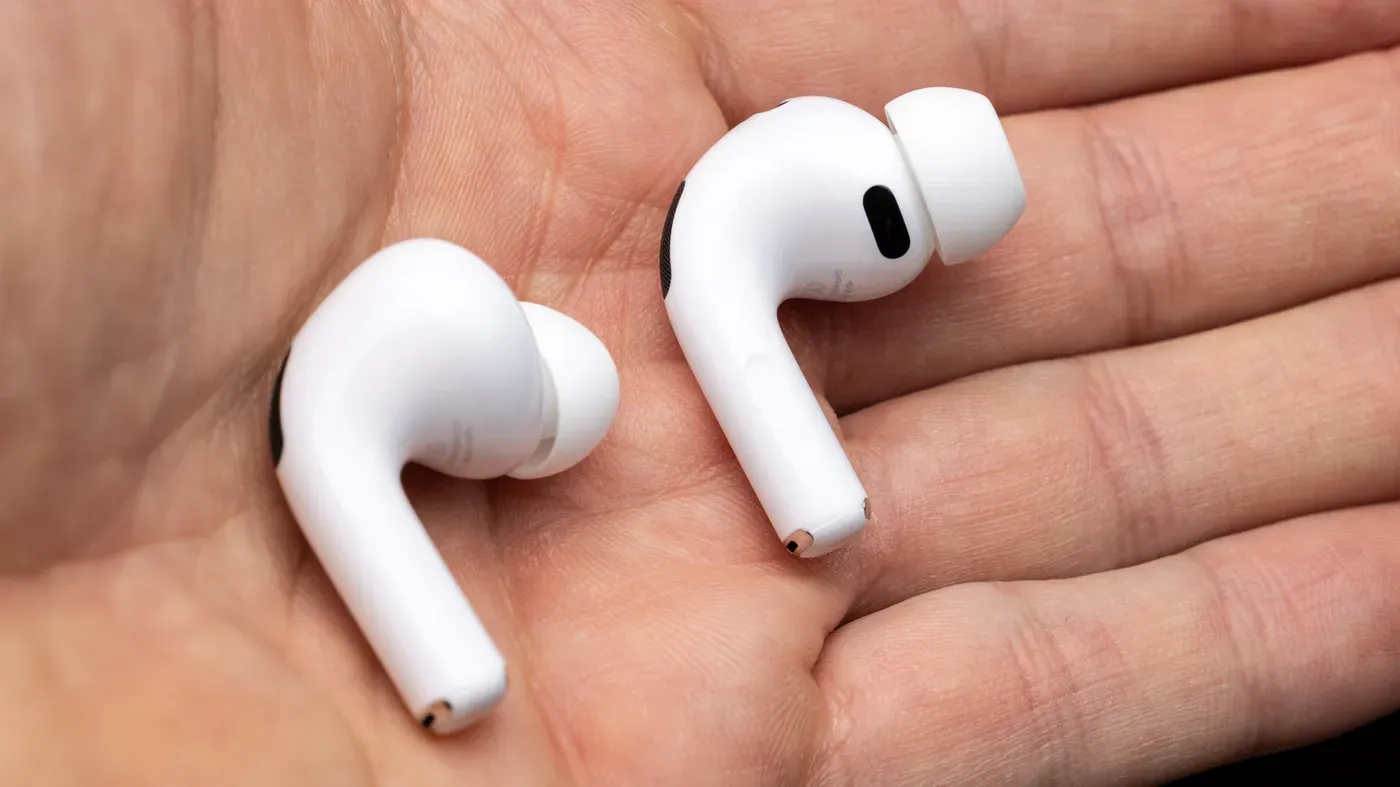
Connection issues between Apple's AirPods and iPhones can be frustrating but most problems are caused by simple settings adjustments
Troubleshooting connection issues with Apple AirPods often requires checking the battery level and adjusting settings to resolve common causes of connectivity problems.
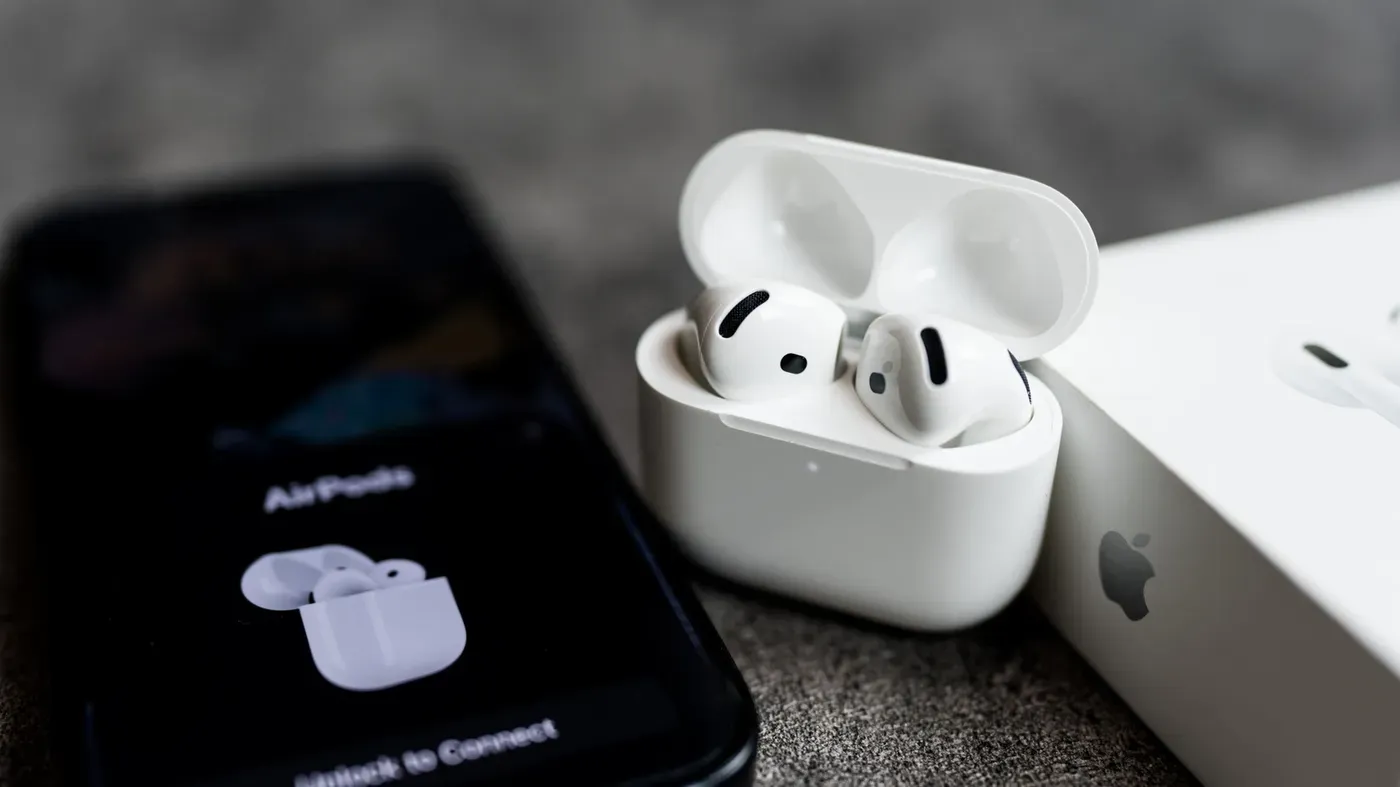
Connection issues between Apple's AirPods and iPhones can be frustrating, but most problems are caused by simple settings that need adjustment.
The pairing process is usually seamless due to features like quick pairing and auto-switch, making it easy to get started with your AirPods. However, some users may encounter difficulties where their AirPods won't play any sound or refuse to connect altogether. Fortunately, resolving these issues often requires just a few tweaks to the settings.
One common reason for connection problems is when only one earbud is working properly. This can be due to various factors such as outdated software on your iPhone or faulty AirPods. It's also possible that automatic switching between devices has been enabled, causing confusion about which device is connected.
Another key factor contributing to connection issues is the battery level of both the earbuds and their case. If either the earbuds or the case runs out of power completely, they may not appear on your iPhone at all, even if you're warned about a low battery. This can be easily overlooked but is an important consideration when troubleshooting.
When attempting to troubleshoot connection issues with your AirPods, it's essential to consider these fundamental causes and adjust settings accordingly before moving on to more complex solutions like resetting the earbuds or seeking support from Apple.
When troubleshooting connectivity issues with your Apple AirPods, it's worth checking that they're properly charged before moving on to other solutions. This can be done by placing them in their charging case and plugging it into a power source for a few minutes. If the earbuds are not functioning due to a lack of charge, lights should illuminate within the case.
Earwax or dirt buildup on the charging contacts can prevent AirPods from being recharged even when they're stored in the case. Cleaning these areas with a soft cotton swab may resolve this issue and allow your earbuds to recharge.
AirPods that are signed into your Apple account have the ability to automatically switch between paired devices, such as an iPhone or Mac, based on which one is currently playing audio. However, if another device is producing sound - even something as simple as a notification email - it can cause the AirPods to connect to it instead of the intended device.
To check whether your AirPods and iPhone are running the latest software, navigate to Settings > General > Software Update on your device. This will help determine whether outdated firmware or an older version of iOS may be contributing to connectivity issues between the earbuds and phone.
To troubleshoot connectivity issues between AirPods and an iPhone, check the firmware version of the earbuds in the Settings app. Look for the "Version entry in the AirPods menu to see if it matches Apple's latest available firmware. If not, charge your AirPods and wait about 30 minutes for them to automatically update.
Bluetooth must be enabled on the iPhone for AirPods to function properly. Open the Settings app and toggle Bluetooth to the On" position. Next, put the AirPods in your ears and check if they appear in the Bluetooth list. Tap on them to connect and verify that they are listed under the audio output option in Control Center.
If the AirPods fail to show up even with Bluetooth turned on, try resetting and re-pairing the earbuds. Place both earbuds inside their case and open the lid while holding it in pairing mode. For newer models such as AirPods 4, AirPods 5, and AirPods Pro 3, double-tap the front of the case until a white light turns on.
For a successful re-pairing, follow the instructions provided by your iPhone after resetting the earbuds. This will guide you through completing the pairing process. Note that different models have distinct reset procedures, such as pressing and holding the button on the back of the case for 15 seconds or using specific combinations of buttons.
Specific model requirements must be considered when attempting to re-pair AirPods Max. To reset these earbuds, press and hold both the Digital Crown and the ANC button simultaneously for about 15 seconds. This will initiate the pairing process, which your iPhone will then assist in completing.
If none of the troubleshooting steps work, it's possible that the issue lies in a hardware failure within the AirPods themselves.
Contacting Apple Support is the next step to explore replacement options, which may be free if the device is still under warranty or if an AppleCare+ plan is in place.
Facts based on reporting originally published by Engadget.
You may republish this story, in full or in part, if you credit News Central Site and link to it (licence CC BY 4.0). Photos are not included.