AirPods Disconnection Issue May Be Caused by Automatic Switching Settings
Users experiencing frequent disconnections from their AirPods may need to adjust settings and configurations surrounding them.
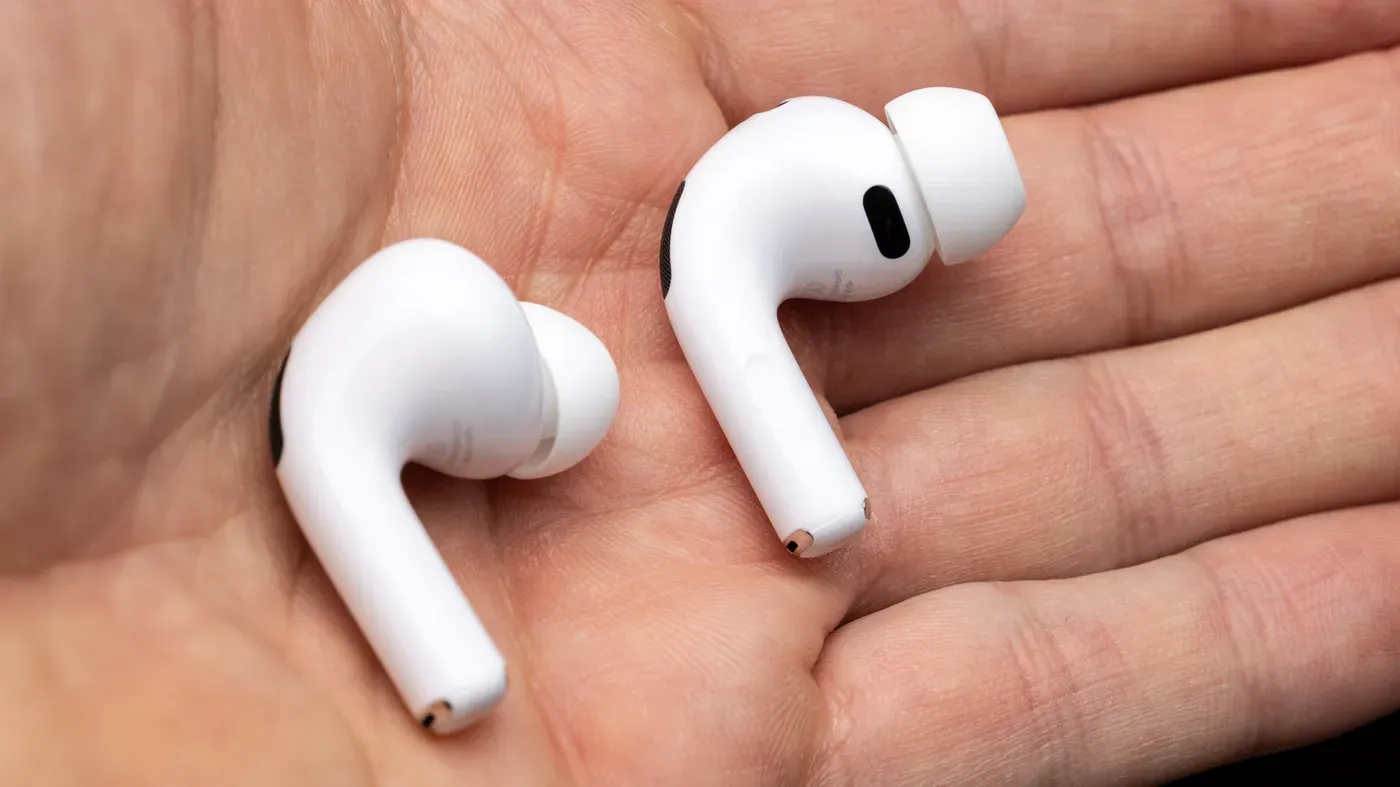
Reports have been flooding in about users experiencing frequent disconnections from their AirPods without warning. At first glance, it might seem like a problem with the earbuds themselves, but experts suggest that's unlikely to be the case.
Instead of looking at the AirPods as the source of the issue, it's more productive to examine the settings and configurations surrounding them. One potential culprit is automatic switching, a feature available on all AirPods Pro, AirPods Max, and AirPods 2 or later models.
When multiple devices are connected to the same AirPods, they can cause frustration as the earbuds constantly switch between each device. If you use your AirPods with an iPhone, iPad, and Mac, it's possible that the disconnections you're experiencing aren't disconnections at all, but rather the AirPods bouncing back and forth among devices.
To resolve this issue, users need to adjust the settings on their connected devices. On each device, they should navigate to Settings, select their AirPods from the list of available options, then choose "Audio & Routing" followed by "Connect to this iPhone/iPad". From there, they can set the earbuds to connect only to the last device they were paired with.
To troubleshoot AirPods that keep disconnecting without warning, users can adjust their Bluetooth settings on Apple devices.
This involves opening Settings > Bluetooth and selecting the information icon next to the AirPods listing. If they are not currently connected, choosing "Connect to This [Device] > When Last Connected to This [Device]" can help resolve connectivity issues.
For those who primarily use their AirPods with one device, switching the "Automatic" setting to "When Last Connected on other Apple devices can be beneficial. This allows the earbuds to automatically connect to their most-used device when inserted, but requires manual selection for other devices.
AirPod owners can also take steps to prevent unnecessary disconnections by fully removing them from unused devices using the Forget This Device" option in the Bluetooth menu.
The Automatic Ear Detection feature on AirPods, enabled by default, should also be checked. This feature pauses playback when earbuds are removed, but can sometimes malfunction and interrupt music for no apparent reason.
Proper fit is crucial for uninterrupted listening on AirPods. To ensure this, navigate to the AirPods menu and select Ear Tip Fit Test while wearing the earbuds. This quick test assesses whether the ear tips are snugly fitted in your ears.
If the test reveals a poor seal or if you suspect that the ear tips may be dirty, consider cleaning and replacing them with new ones. Additionally, pay attention to the condition of your AirPods case, as debris like earwax or lint can obstruct electrical contact points and hinder charging.
It's also essential to address issues related to only one non-functioning AirPod. The troubleshooting process for this scenario is separate from general maintenance.
Disabling Automatic Ear Detection might resolve connectivity issues if other measures fail. To do this, go to Settings > AirPods > Audio & Routing on your device and toggle off the feature.
Interference from nearby devices or strong Wi-Fi activity could be contributing to disconnections. If you frequently use your AirPods near a microwave, other Bluetooth devices, or in areas with heavy Wi-Fi usage, try relocating them to see if this resolves the issue.
To resolve AirPods disconnection issues, it's worth investigating settings related to Siri. If you have Siri enabled and set to respond to voice commands, playback may be interrupted by the assistant if it suddenly becomes active.
This can be addressed by modifying your device's Settings > Siri > Requests. Specifically, toggle off the top option, which will disable Siri across your entire device rather than just for AirPods.
Another potential culprit is the automatic switching feature on other devices connected to your AirPods. This setting allows AirPods to seamlessly transition between devices, but it can also cause conflicts when multiple devices are vying for control.
To troubleshoot this issue, revisit Settings and disable the automatic switching option on secondary devices while keeping it enabled on your primary device.
If issues persist despite adjusting settings, it's possible that the connection has become unstable due to repeated pairing and unpairing between devices.
To resolve this issue, try disconnecting your AirPods from your Mac, then restart both devices before re-pairing them again. Alternatively, if problems persist, a full reset of your AirPods may be necessary, following Apple's specific guidance for the model in question.
Facts based on reporting originally published by Engadget.
You may republish this story, in full or in part, if you credit News Central Site and link to it (licence CC BY 4.0). Photos are not included.